
Build an order status (WISMO) AI agent
Let customers ask where their order is: verify them by email, look the order up in your store or API and answer, or hand over.
Goal: answer "where is my order?" without a person, and only ever for the right customer.
"Where is my order?" (WISMO) is often the most common question an online store gets. This guide is for stores on Shopify, or with an order system that has an API. You need the Builder role or higher. Allow about 45 minutes.
How do I answer "where is my order?" automatically?
Connect your store with Shopify, or a REST endpoint that looks up an order. Turn on email verification, so the agent only shares an order with the customer who placed it. Build a workflow that verifies, looks the order up and answers, or offers a person when it cannot find the order.
What you need
- A store or API that can look up an order: Shopify, a REST connection or an MCP server.
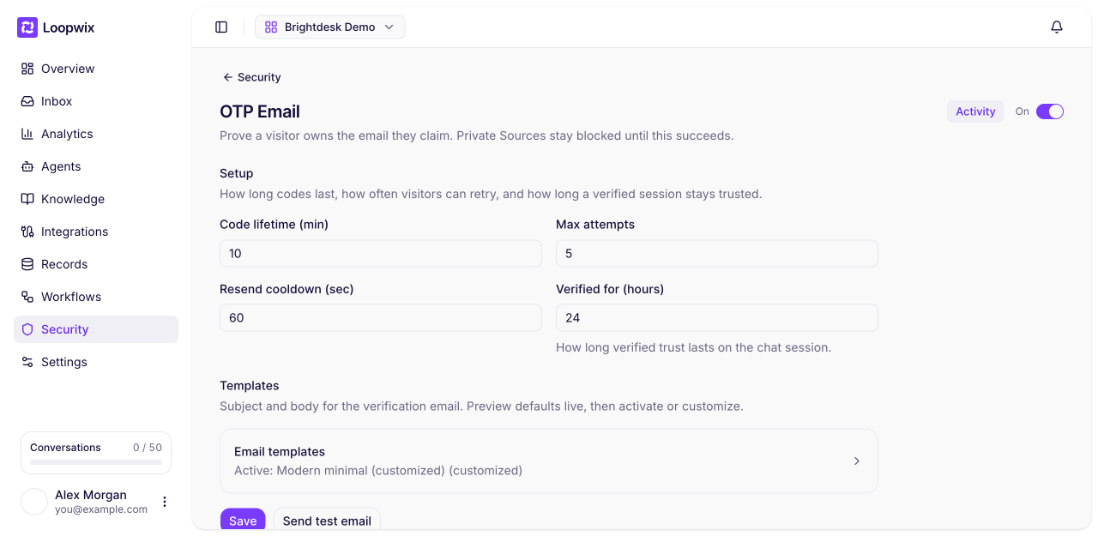
- OTP Email switched on. It is on by default in new workspaces.
- Your shipping policy and delivery times as knowledge, so the agent can explain what a status means.
What can the agent tell the customer?
With Shopify, the agent sees each order's number, date, items, total, payment status and fulfilment status. It does not see carrier tracking events. So it can say "your order has been fulfilled", but not "your parcel is at the depot".
Your shipping knowledge fills the gap. For example, "Orders ship within 2 working days, and delivery takes 3 to 5 days." The agent can then explain what "fulfilled" means for the customer.
With a REST connection, the agent sees whatever your API returns. If your API includes tracking details, the agent can share them.
Steps
- Connect your store. Open Integrations, select Add integration, then Shopify. Connect it, then select Test connection and Verify capabilities. For your own API, create a REST endpoint instead.
- Enable only look-up. Turn on Search orders and leave Cancel order and Create refund off. Keep the minimum trust at Verified.
- Turn on verification. Open Security, then OTP Email, and check it is On. You can add Magic Link as a second way to verify.
- Add your shipping knowledge. Add your shipping and delivery pages with Add website pages, then publish them.
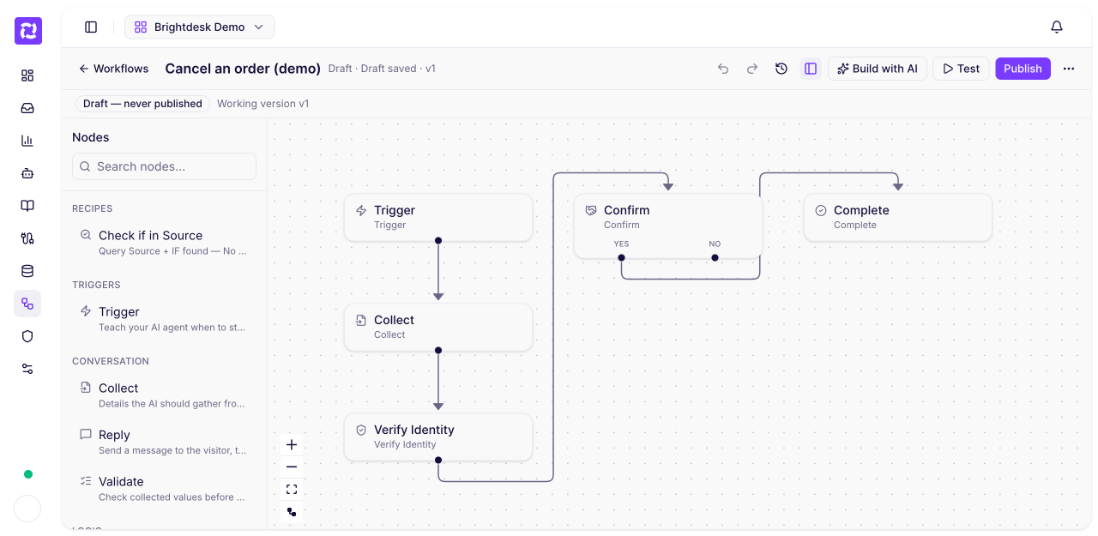
- Build the workflow. Use the Look up an account recipe in Workflow recipes: Collect the email and order number, then Verify Identity and Query Source. If the order is found, Reply with the status. If not, Escalate.
- Attach and publish. Attach the workflow, then publish the agent.
What does the conversation look like?
An example on the website chat, shortened.
Customer: Where is my order #1042?
Agent: I need you to verify your identity before I can help with that.
The chat shows Verify your email. The customer enters their email and the 6-digit code.
Agent: Thanks. Order #1042 was placed on 3 March and has been fulfilled. Orders usually arrive 3 to 5 working days after they ship.
Customer: It still hasn't arrived after a week.
Agent: Sorry about that. I'll pass this to the team so they can check with the carrier.
What if tracking is missing or the order can't be found?
- No fulfilment yet: the agent says the order has not shipped, and explains your usual dispatch time.
- Order not found: the agent says so calmly. It never guesses. Then it offers a person, or explains how to reach you.
- Order placed with another email: the look-up returns nothing, because results are tied to the verified email. Tell the agent to suggest trying the email used at checkout.
- Late delivery: a hand-over lets your team check with the carrier. Hand-over is switched on by Loopwix on request; see Set up escalation.
Why does the customer have to verify?
An order number alone is not proof. Anyone could type someone else's number. With verification, the customer proves they own the email, and Shopify results are filtered to that email. A guest who has not verified sees no order details at all.
A verified session lasts 24 hours by default, so a returning customer does not verify again that day.
Test script
Run these in Test chat before you publish, and again on the live website chat.
| Ask | Expect |
|---|---|
| "Where is my order 1042?" as a guest | A request to verify, and no order details |
| A wrong code | A friendly retry with the tries left, not order details |
| The right code and a real order | The status, in your words |
| An order number that does not exist | A calm "not found" and an offer of help |
| Another person's order number | No details, because the look-up is tied to the verified email |
| "When will it arrive?" | Your delivery times from knowledge |
Can the agent show carrier tracking?
Not with Shopify. The agent sees Shopify's fulfilment status, not carrier events. A REST connection to an API that returns tracking can show it.
Does the customer need the order number?
It helps, but it is not required. After verifying, the agent can find the customer's recent orders by their email and ask which one they mean.
What if the customer used a different email at checkout?
Nothing is found, because orders are matched to the verified email. The agent can ask them to verify with the email they used at checkout.
Can it also cancel orders?
Yes, with Cancel order and a confirm step. See Ecommerce AI agent for orders and returns.
Next steps
- Ecommerce AI agent for orders and returns adds cancellations and returns.
- Trust and verification explains the trust levels.
- Shopify lists every capability and permission.
Used for: Order status answers
Support agent from your help center
Turn your help center into an AI support agent that answers from your existing articles, passes your tests and hands tricky questions to your team.
Ecommerce store agent
Build an ecommerce AI agent that answers product, shipping and returns questions and lets verified customers check or cancel their orders.