
Workflows
Workflows run multi-step processes in chat in the order you design: collect details, verify the customer, look things up, update records and hand off.
Instructions tell an agent what it should do. A workflow makes sure a process happens the same way every time: cancel an order, book a call, capture a lead, create a refund request.
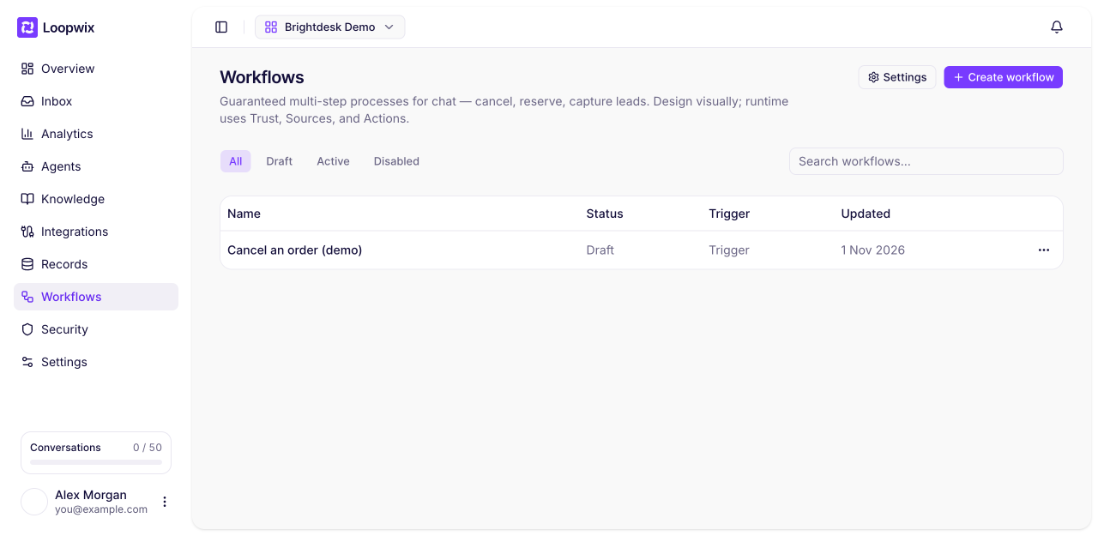
Open Workflows in the sidebar. The page describes them as "Guaranteed multi-step processes for chat: cancel, reserve, capture leads." You design them visually, and they use the same trust, sources and actions as the rest of Loopwix.
How a workflow runs
- A customer says something that matches the Trigger, for example "I want to cancel my order". The agent reads the Trigger description and takes the workflow over for that part of the chat.
- The workflow walks its steps in order. Steps collect details, check them, verify identity, look data up, branch on Yes or No, create or update records, or call an action.
- It ends at Complete (a final message) or Escalate (hand off to a person).
The agent still does the talking, so the conversation feels natural, but the order, checks and actions are fixed by the design. It cannot skip verification or invent a step.
Workflow, instructions or integration?
| You want | Use |
|---|---|
| Tone, general behaviour, how to answer | Instructions |
| The agent to look something up or do one thing | An integration capability |
| A guaranteed sequence with checks, verification, records or approvals | A workflow |
Workflows build on the other pieces: they use the same approved and enabled integration capabilities, the same verification and the same records. Every action still passes the trust and confirmation checks described in How integrations work.
The fifteen step types
| Group | Steps |
|---|---|
| Trigger | Trigger |
| Conversation | Collect, Reply, Validate |
| Logic | IF condition, Decide |
| Data | Query Source, Call Action |
| Trust | Verify Identity, Confirm |
| Records | Create Record, Update Record, Query Records |
| End | Complete, Escalate |
See Conversation and logic steps and Data, trust, records and ending steps.
Status of a workflow
| Status | Meaning |
|---|---|
| Draft | Being designed; not live |
| Active | Published and available to attached agents |
| Disabled | Switched off. "Agents stop starting this workflow until you publish it again." |
The list has All, Draft, Active and Disabled filters and a search box ("Search workflows…"), with Name, Status, Trigger and Updated columns. A workspace with none shows "No workflows yet. Create a draft to open the designer."
From idea to live
- Create and design it, or let Build with AI draft it.
- Test it as a guest and as a verified visitor.
- Publish it.
- Attach it to an agent and publish the agent.
Pages in this section
Create and design a workflow · Conversation and logic steps · Data, trust, records and ending steps · Build with AI · Test, publish and attach · Recipes · Troubleshooting
Who can do this
Owners, Admins and Builders build, test, publish and attach workflows. Support can view workflows and runs. See Roles and permissions.
Records troubleshooting, limits and permissions
Fixes for agents that cannot see rows, imports that fail, rows that will not move status, and the limits and roles that apply.
Create and design a workflow
Create a workflow and use the designer: the palette, canvas, inspector and toolbar. Add and connect steps, and reuse details from earlier steps.