
Build an AI lead capture chatbot
Build an AI lead capture chatbot that qualifies interested visitors, stores their details in a Leads table and lists them in a daily summary for your team.
Goal: turn interested visitors into leads in the middle of a normal conversation, without a form.
This guide is for any business that sells a service or a product with a sales conversation: agencies, consultants, trades, schools and software companies. You need the Builder role or higher. Allow about 45 minutes.
How do I capture leads with an AI chatbot?
Create a Leads table from the Records starters. Build a workflow from the Capture a lead recipe. The agent asks for the name, email, phone and need, checks them, asks for consent and saves the lead. Attach the workflow to your agent. Your team works the leads from a board view and gets a daily summary.
Why use the agent instead of a form?
Visitors rarely fill in a form before their question is answered. The agent answers first, then offers to take details at the right moment. It can also ask qualifying questions in plain words, such as "How many locations do you have?" Each lead arrives with the conversation that led to it.
What you need
- An agent that already answers questions about your services and prices. See Turn your help center into an AI agent.
- A privacy notice on your website that covers chat leads.
- Two to four qualifying questions that tell your team whether a lead is a good fit.
Steps
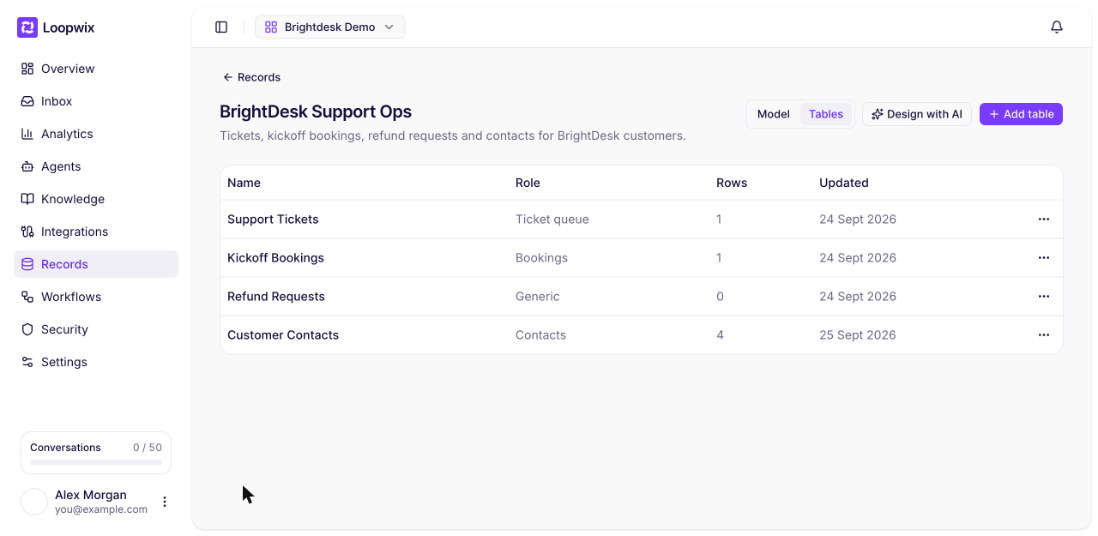
- Create the table. In Records, start from the Leads starter. It has Name, Email, Phone, Interest, Source, Status, Consent and Notes. See Create bases and tables.
- Add your qualifying fields. For example, Company size or Budget range. Keep it short; every field is a question the agent asks.
- Set AI access. Turn on Create, so the agent can save leads. Turn Read and Update off if they are on, so the agent cannot look up other people's details. Keep visitor access Staff only.
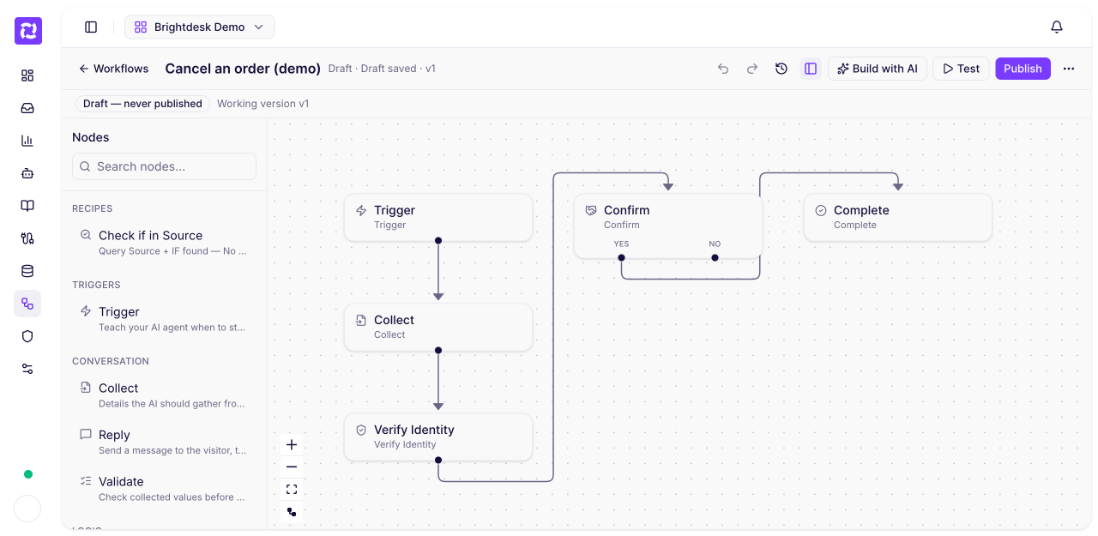
- Build the workflow. Use the Capture a lead recipe in Workflow recipes. Collect the name, email, phone and need, then Validate the email and phone. Ask for consent, Create Record, then Reply and Complete.
- Write the trigger. For example, "A visitor wants a quote, a demo or a call back. Not when they only ask a general question."
- Attach and publish. Attach the workflow and the table, then publish the agent.
How should the agent ask for consent?
The Leads starter has a Consent field. Ask for consent in plain words before the lead is saved. For example, "Can we contact you by email about this?" Save the answer in the Consent field.
If the visitor says no, the agent should keep helping and save nothing. Write that in its instructions.
What does a lead conversation look like?
An example, shortened.
Visitor: Do you do websites for restaurants?
Agent: Yes. We build sites with online menus and table booking. Would you like a quote?
Visitor: Sure.
Agent: Great. How many locations do you have?
Visitor: Two.
Agent: Thanks. What's your name, email and phone number?
Visitor: Maria Lopez, [email protected], +34 600 000 000
Agent: Can we contact you by email about this quote?
Visitor: Yes.
Agent: Thanks, Maria. We'll be in touch within one working day.
Work the leads
- Board view: open the Leads table and switch to the board. Leads move from New to Contacted and Qualified, then to Won or Lost.
- Daily summary: each teammate can turn on Daily summary and plan tips in Settings → Personal → Notifications. It lists the people who left their details. See Notifications.
- Follow-up: reply from your own email or phone. The lead's row keeps the details and notes.
Can I send leads to my CRM?
Not directly today. HubSpot and Salesforce integrations are on the roadmap. For now, export the Leads table as CSV from Records, or add your team's Google Sheet with Google Sheets Append row.
Test script
Run these in Test chat before you publish, and again on the live website chat.
| Ask | Expect |
|---|---|
| "How much is it? I'd like a quote" | An answer, then an offer to take details |
| An invalid email | A request for a correct one |
| A complete lead with consent | A new row in the Leads table, with Consent saved |
| "No, don't contact me" | No row saved, and the agent keeps helping |
| A general question only | Answered, with no push for details |
Where do the leads go?
Into the Leads table in Records. Your team sees them in the table or the board view, and in the daily summary.
Can I get an alert for each new lead?
The daily summary lists new leads once a day. For an instant alert, attach Slack and add a Call Action step that runs Post message.
Does it work on WhatsApp and other channels?
Yes. The same workflow runs on every channel the agent is on. See Channels.
Can the agent read the leads table?
Only if you turn on AI Read. Keep it off, so the agent cannot share one visitor's details with another.
Next steps
- Records recipes for the Leads table and other set-ups.
- Workflow recipes for the capture steps.
- Notifications for the daily summary.
Used for: AI agent for trades
Restaurant reservations agent
Set up an AI agent for a restaurant that answers menu, allergen and opening-hour questions and takes table reservation requests for your staff to confirm.
Refund requests with approval
Let your AI agent collect refund requests with the order and reason, verify the customer, and send each request to a person on your team to approve.