
MCP servers
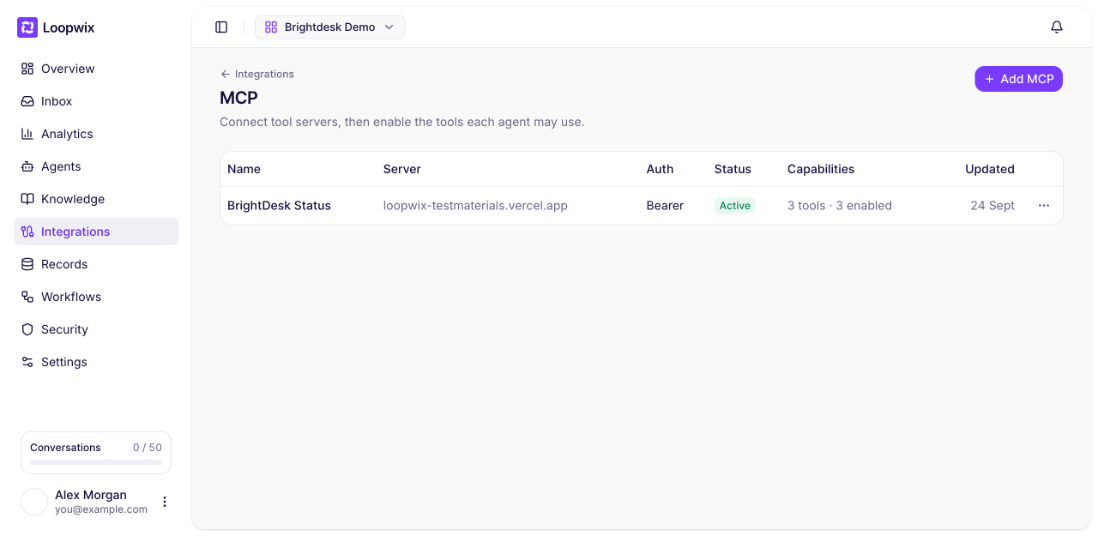
Connect any MCP tool server, choose how Loopwix authenticates, discover its tools and turn on only the ones your agent should use.
MCP (Model Context Protocol) servers expose tools. Loopwix connects to one, lists its tools and lets your agent call the ones you enable.
Open Integrations → Add integration → MCP.
How do I connect an MCP server to my AI agent?
Open Integrations, then Add integration, then MCP, and enter the server URL and how Loopwix should authenticate. Loopwix lists the tools the server offers, and you enable only the ones your agent should use. MCP is in beta.
Add the server
In Add MCP server fill in:
| Field | Notes |
|---|---|
| Display name | For example "Notion workspace". Up to 80 characters |
| Server URL | The HTTPS address of the MCP server |
| Auth type | OAuth, None, Bearer token, API key or Custom headers (see below) |
| Allowed tool names | Leave empty to discover all tools, or list only those you want (up to 200) |
| Timeout (seconds) | "Raise this for slow tools; keep it low for snappy chat." From 5 to 120 |
| Test after save | Runs a connection test right away |
Under Advanced:
- Transport: HTTP is the usual choice (Loopwix sends one request and waits for the reply). Choose SSE only if the server's documentation says it needs Server-Sent Events.
Auth types
| Type | How it works |
|---|---|
| OAuth | After you add the server, a browser sign-in opens. You do not need a client id |
| None | For public or local servers that need no credentials |
| Bearer token | "Stored encrypted. Sent as an Authorization: Bearer header on every MCP request." |
| API key | "Stored encrypted. Sent in the header name you set (default X-API-Key)." Match the header the server documents |
| Custom headers | Up to 20 header name and value pairs, such as Authorization or X-Org-Id. Values are stored encrypted |
You get MCP server added when it is saved. Errors you may meet:
- "Enter a bearer token."
- "Enter an API key."
- "Add at least one header name."
- "Timeout must be between 5 and 120 seconds."
- "Sign-in failed" or "Sign-in was cancelled".
Discover and enable tools
Open the server. Capabilities says "Turn on only the tools this workspace should use. Agents pick from enabled tools only." If no tools show, sign in or test the connection first ("Sign in to discover tools").
- Switch Enable on for each tool you want.
- Enabling a tool that can create, update or cancel records asks Enable this action?.
- Run Verify capabilities. It tests your enabled tools with a dummy scenario, which may add dummy data in the connected app. "Turn on at least one tool first" appears if none is enabled.
- If the server later removes a tool, it is marked Removed on server, and you can turn it off.
Manage the server
- Rotate a secret by entering a new value ("Enter a new value to rotate the secret").
- Change the display name or headers (blank header values keep the stored value).
- Disconnect server? removes it.
Attach and use
Attach the enabled tools to an agent like any integration: Connect and attach an integration. MCP tools follow the same trust, confirmation and own-data rules as every capability; see How integrations work.
Good practice
- Enable the fewest tools you need.
- Prefer read-only tools.
- Use a low timeout so chat stays fast.
- Use a dedicated credential for Loopwix on the MCP server.
REST APIs
Connect any HTTPS API to your AI agent: set up authentication, define endpoints, hide sensitive fields, test with scenarios and publish lookups.
Shopify
Connect Shopify so your AI agent can find a verified customer's orders and, if you allow it, cancel orders and create refunds after confirming.