
Attach workflows
Choose which workflows an agent may start in chat, such as cancelling an order or capturing a lead, by ticking them in the agent's Workflows section.
A workflow is a guided, multi-step process, such as cancelling an order or capturing a lead. The agent can start it when a customer's message matches its trigger. Attaching makes the workflow available to this agent.
How do I let my agent start a workflow?
Open the agent, select Workflows and tick each workflow it may start. A workflow is a guided, multi-step process, such as cancelling an order or capturing a lead. The agent starts it when a customer's message matches its trigger. Changes apply when you save.
Attach a workflow
- Open the agent and select Workflows. The section says "Guided processes this agent may start in chat. Changes apply when you Save."
- Use Search workflows… to find one. The search box appears when more than eight workflows are available.
- Tick the workflows this agent may run. Attached ones are listed under Attached, the rest under Available. Each row shows the workflow's trigger, or its description.
- Check the counter, for example "1 selected of 4 available".
- Select Save draft, then publish.
If nothing is attached the section says "Nothing attached. This agent will not start workflows until you select them below."
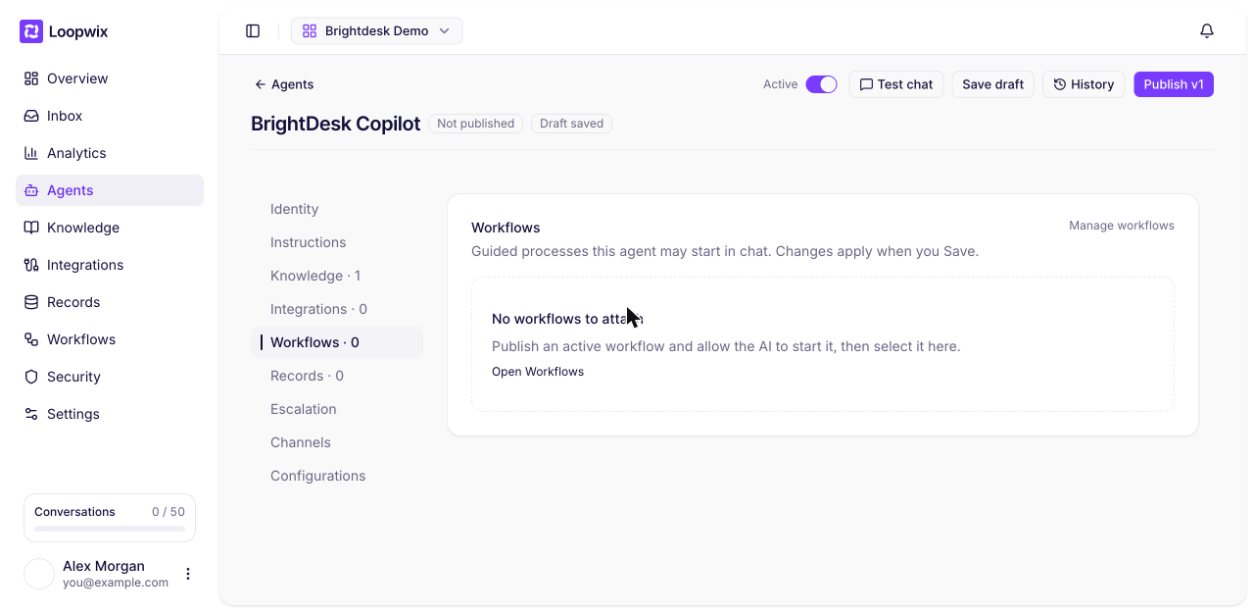
Which workflows appear
Only workflows that are ready to run appear:
- The workflow is active, meaning it has been published.
- The workflow allows the AI to start it. If you turned that off in the workflow, it will not be listed.
If none qualify you see "Publish an active workflow and allow the AI to start it, then select it here." with an Open Workflows link. Manage workflows opens the Workflows page. Build and publish them first; see Workflows and Test, publish and attach.
What happens in chat
When a customer says something that matches an attached workflow's trigger, the agent takes the workflow over for that part of the conversation. The workflow runs its steps in order; the agent still does the talking. See How a workflow runs.
Workflows use the same safeguards
A workflow can only use integration capabilities that are enabled and approved. If one of its capabilities is later disabled or unapproved, publishing the agent is blocked until you fix it. See Publish an agent.
Limits
An agent can have up to 200 workflows attached.
Attach integrations
Give an agent access to connected systems by adding an integration, choosing which capabilities it may use, and writing when it should use them.
Attach records
Let an agent look up or change data in Records tables: attach a table, then enable Create and Update per table; Read is on by default.