
Agency playbook
Run Loopwix AI agents for several clients: one workspace each, a repeatable setup, the right client access, usage caps, reporting and handover.
Goal: deliver a reliable AI agent to each client quickly, and keep every client's data separate.
This guide is for agencies, freelancers and consultants who build and run AI customer service agents for clients. You need the Owner or Admin role. Plan half a day for your first client, and less for each one after.
How do I run AI agents for several clients?
Give each client their own Loopwix workspace, and repeat the same setup checklist in each. Invite client staff as Support or Viewer. Set a budget per client, report weekly from Analytics, and decide early how you will hand a client over if they leave. Clone a strong agent to start each new client faster.
One workspace per client
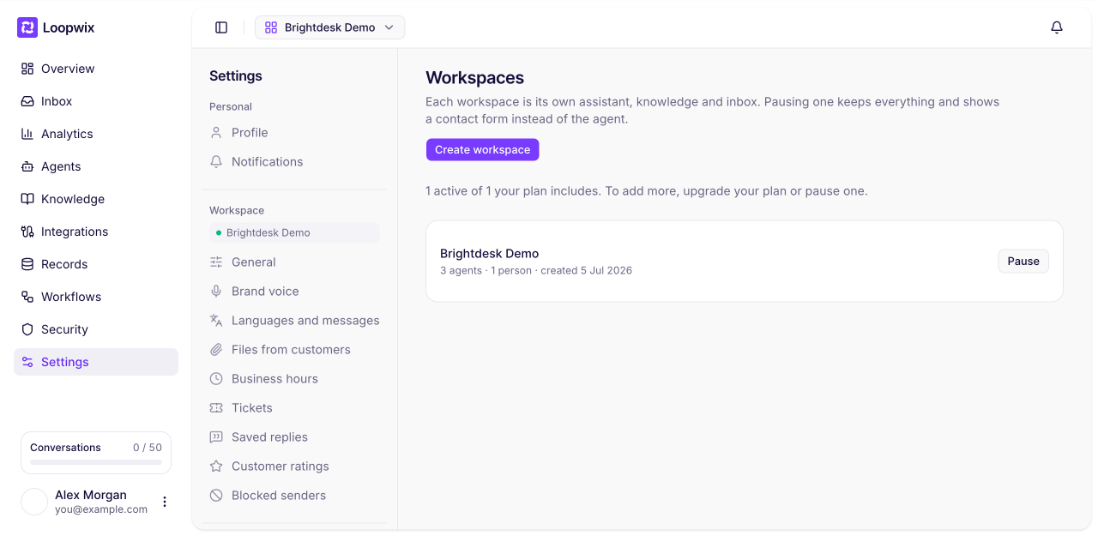
A workspace holds everything for one client: agents, knowledge, records, workflows, integrations and the Inbox. Nothing is shared between workspaces, except your account's billing and your team. So one client's customers can never see another client's data.
Name each workspace after the client's business. Use a pattern for agents too, such as "Client name · Support", so lists stay readable. See Create, switch and pause workspaces.
A repeatable setup
Use the same checklist for every client, so quality does not depend on who builds it.
- Kick-off. Collect the client's help pages, policies, top 20 customer questions and opening hours.
- Knowledge. Import their website, add FAQs, publish and attach. See Turn your help center into an AI agent.
- Identity and instructions. Name, tone, welcome message and what the agent must not do.
- Verification and actions. Turn on email verification before any customer-specific data. Enable only the actions the client approves.
- Website chat. Set Allowed sites to the client's own domains, then install it.
- Go live. Run Go live with confidence with the client.
When clients are similar, build one strong agent and use Clone from when you create the next. It copies the attachments, and you replace the client-specific knowledge. See Create an agent.
Give the right access
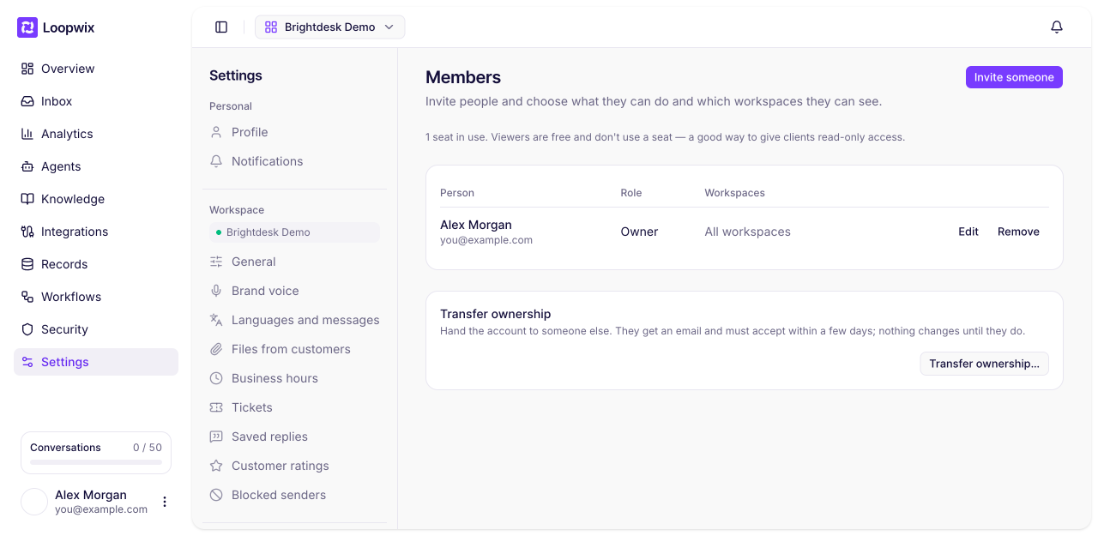
Invite people in Settings → Organization → Members, and choose the workspaces each person can see.
| Person | Role | What they can do |
|---|---|---|
| Your builders | Builder | Build and publish agents, knowledge and workflows |
| Client support staff | Support | Answer handed-over conversations in the Inbox |
| Client stakeholders | Viewer | See conversations and analytics, and change nothing |
Viewers are free. Hand-over to the Inbox is switched on by Loopwix on request; see Set up escalation. See Roles and permissions for the full list.
Keep each client's costs under control
Open Security → Security settings → Usage & budgets in each client workspace. Set a budget that fits what the client pays you. As a budget is used, the agent steps down gracefully instead of stopping at once. First it uses a cheaper model and shorter answers, then it answers without actions. See Usage and budgets.
To stop an agent immediately, use Runtime controls. To pause a client who stops paying, Pause their workspace. Nothing is deleted.
Pricing your service
Your price to the client is your decision. Agencies often combine a setup fee for the first build with a monthly fee for running and improving the agent. Base the monthly fee on the work you do each month: the weekly review, new knowledge, reporting and changes. Keep the client's usage budget inside what that fee covers.
Report weekly
Open Analytics in the client's workspace once a week. Share three things:
- Conversations handled and how many needed a person.
- Unanswered questions from AI insights, and the fixes you made.
- Ratings, if customer ratings are on.
Every chart has View as table, CSV and PNG, so you can drop it into a client report. The Weekly analytics summary notification sends you what changed and three things to do. Improve your agent weekly is a 30-minute routine to follow.
Plan the hand-over early
Decide at the start what happens if a client leaves or wants to run the agent themselves. Loopwix has no way to move one workspace to another account. Transfer ownership hands over the whole account, with every workspace in it.
So, for a client who may take over later, create a separate Loopwix account for them from the start. You work in it as an Admin. If they take over, they already own it. For clients who stay with you, keep their workspace in your own account.
Test script
| Check | Expect |
|---|---|
| A client's Support user signs in | They see only that client's workspace |
| A Viewer opens the Inbox | Read-only, with no reply box |
| One client's budget runs out | Other clients are unaffected |
| The chat is embedded on another domain | It does not load, because of Allowed sites |
| A cloned agent | Same attachments, with the old client's knowledge removed |
Can I white-label Loopwix for my clients?
Not today. You can set the agent's name, avatar and appearance for each client, but Loopwix does not offer white-label branding.
Can clients see each other's data?
No. Each client's agents, knowledge, records and conversations live in their own workspace. People see only the workspaces they are given.
How do I give a client the account when they leave?
Only if their workspaces are in an account of their own. Transfer ownership hands over the whole account. Plan this when you start working with the client.
Which plan do agencies need?
The Agency plan has the most workspaces and people. See For agencies.
Next steps
- For agencies for the recommended setup.
- Members and invitations for invitations and ownership.
- Usage and budgets for budgets and service levels.
Used for: Loopwix for agencies
Improve your agent weekly
A 30-minute weekly routine for your Loopwix AI agent: read the insights, fix three knowledge gaps, review low ratings and publish the improvements.
Moving from another chatbot
A vendor-neutral plan for switching to Loopwix: gather your content, rebuild knowledge and rules, run both in parallel and cut over safely.