
Publish an agent
Publish your Loopwix agent: the saved draft becomes a numbered version that customers see. Pass the security check, then republish or roll back later.
Publishing turns your saved draft into a numbered version and makes it live for customers. Customers keep seeing the previous version until you do.
How do I publish my agent so customers see it?
Test the draft in Test chat, then select Publish. Loopwix saves the draft as a numbered version and makes it live once it passes a security check. Customers keep seeing the previous version until then. Make sure your knowledge is published and attached first.
Before you publish
- Run the readiness checklist and check the agent with Test chat.
- Make sure your knowledge is published and attached, and that integrations and workflows you rely on are enabled.
Publish
- Open the agent and check it with Test chat.
- Select Publish vN in the toolbar, where N is the next version number.
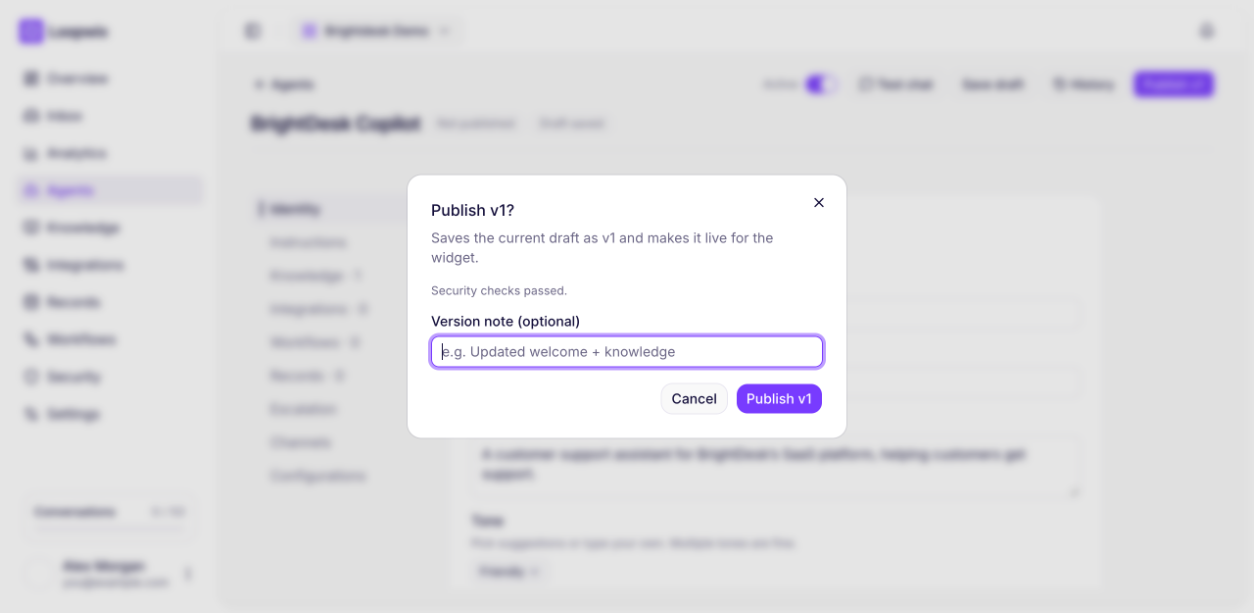
- In the dialog Publish vN? read: "Saves the current draft as vN and makes it live for the widget." If you have unsaved changes, they are included.
- Wait for Checking security…. The result is either Security checks passed. or a list of findings, each with a severity and a Fix suggestion.
- Optionally add a Version note (up to 500 characters), for example "Updated welcome and knowledge".
- Confirm.
The header then shows vN live and a toast says Published vN.
The security check
Before a version goes live Loopwix checks the agent's attached tools. Findings have a severity:
- ERROR blocks publishing. The Publish button stays disabled until you fix it.
- WARNING and INFO are shown but do not block.
| Finding | Severity | What it means | Fix |
|---|---|---|---|
| An action changes data but confirmation is turned off | Error | A write could run without a confirm step | Turn confirmation back on |
| A capability points at a staff-only table that public visitors must never reach | Error | Private rows could be exposed | Unlink the table or change its access |
| A capability exposes customer-private data to an anonymous visitor | Error | Needs identity proof | Require verified identity (minimum trust) |
| A capability is not approved, or its source type is not enabled for the workspace | Error | It cannot be used yet | Test and approve it, or remove it |
| A workflow uses a capability that is disabled or unapproved | Error | The workflow would fail | Re-enable the capability or fix the workflow |
| An action can be run freely from chat | Warning | No fixed confirm step | Prefer a workflow with an explicit confirm step |
| A capability returns whole records to anonymous visitors with no field allow-list | Warning | Too much data may be shown | Set visible and sensitive fields on the table |
| A capability has sensitive fields but is open to anonymous visitors | Warning | They are stripped from replies, but verification is safer | Consider requiring verification |
| A capability declares no rate limit | Info | The platform default applies | Optionally set a stricter limit |
See Security for how verification and trust levels work.
After publishing
- Customers see the new version.
- The History button lists it. See Versions and rollback.
- Knowledge changes follow their own publish; see Knowledge.
- If you use the website chat, make sure the install code is on your site and Allowed sites is set. See Install the website chat.
Publish a version you already have
You can also make an older version live from History. That does not create a new version. See Versions and rollback.
Who can publish
Owners, Admins and Builders can publish. See Roles and permissions.
Troubleshooting
- Publish is disabled: read the security findings in the dialog and apply each Fix.
- Your site still shows the old behaviour: hard refresh the page, and check that the version number in the header is the one you expect.
- A save error appears first: website chat settings are checked on save; the message says what to fix.