
Hand over to a human
Let your AI agent hand a conversation to a person: switch handover on, write when it applies, prepare requests and set the message customers see.
You need the Builder role or higher. Open the agent and select Escalation in its left menu.
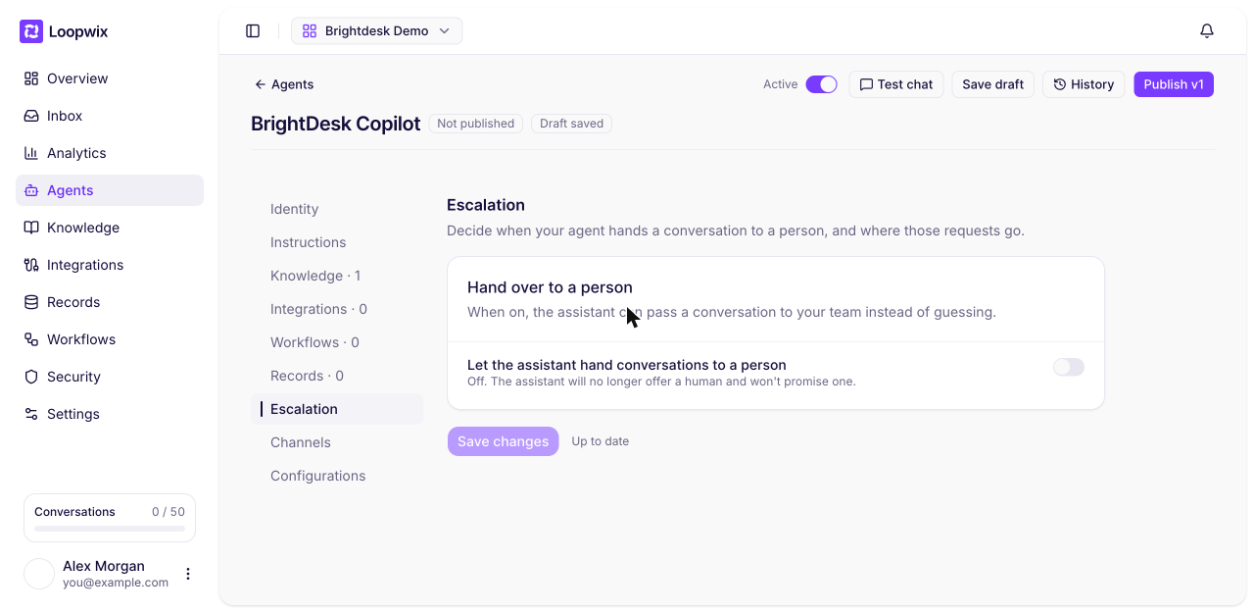
How do I let my AI chatbot hand over to a human?
Open the agent and select Escalation, which appears once Loopwix switches hand-over on for you. Turn on Let the assistant hand conversations to a person, then write the rules for when it applies. Choose who is notified and the message customers see. You need the Builder role or higher.
Steps
- Turn on Let the assistant hand conversations to a person. While it is off, the assistant "will no longer offer a human and won't promise one".
- Edit When to hand over (the Rules, up to 2000 characters). Write in plain language; the assistant follows them. The starter rules cover four cases:
- the customer asks for a person;
- they are upset, or the problem keeps coming back;
- money, safety, legal or account-security questions you cannot resolve confidently;
- the assistant has tried and still cannot answer.
- Under Before handing over choose what to do first: No steps. Hand over right away, or Get requests ready for your team. Preparation waits a few seconds, then opens the request; "if any step fails, the request still opens". You can switch on Write a short summary (internal only) and Set the priority (Low, Normal, High or Urgent). You can also Add tags from your escalations table's tag list.
Notify your team and set the handoff message
- Under Tell your team add Email addresses (comma-separated) and optionally a Slack channel such as
#support(needs Slack connected in Integrations). Email me about requests only affects you. Select Send test notification to check delivery. Everyone listed gets one message with a link, never twice for the same request. - Under What the customer sees edit the Handoff message (up to 300 characters). A preview shows the wording. The recorded reason stays internal and customers never see it.
- Where requests go shows the table that receives every handover and the number of open requests. If you do not have one, it is created when you save. Select Open table to see it.
- Select Save changes, then publish the agent. "Publish your agent to apply this for customers."
Good rules
- One rule per line, concrete ("customer asks to cancel a subscription over the phone").
- Name sensitive topics you never want automated (legal, safety, account takeovers).
- Add a rule for your own known gaps ("Always hand over for refunds above the usual limit").
Workflows
A workflow with an Escalate step creates the same kind of request, with its own Handoff message and Internal reason. See Workflows.
Inbox and escalation
How a conversation moves from your AI agent to a teammate in the Loopwix Inbox: handover, the ticket queue, replies, assignment and closing.
Routing and business hours
Set your team schedule and holidays, assign new tickets automatically and let Loopwix remind, escalate and close quiet tickets.