
Switch from another chatbot to Loopwix
A vendor-neutral plan for switching to Loopwix: gather your content, rebuild knowledge and rules, run both in parallel and cut over safely.
Goal: move to Loopwix without losing answers, and without a gap in service for your customers.
This guide is for teams that already run a chatbot or AI agent on another platform. You need the Admin role in Loopwix. A small move takes a day; plan a week for a parallel run.
How do I move from another chatbot to Loopwix?
Loopwix has no one-click import from other chatbot tools, so plan a careful rebuild. Export your articles, FAQs and saved replies before you cancel the old tool. Add them as knowledge and rebuild your rules and workflows. Test with real questions, run both tools in parallel, then cut over.
What maps to what?
Most chatbot tools use similar building blocks under different names. Use this table to find where each one lives in Loopwix.
| In your old tool, often called | In Loopwix |
|---|---|
| Training data, sources, knowledge base, help articles | Knowledge: website pages, files, FAQs and text notes |
| Q&A pairs, custom answers | FAQs |
| Bot persona, system prompt, guidance | Identity and instructions |
| Flows, playbooks, procedures | Workflows |
| Actions, API calls, apps | Integrations and capabilities |
| Macros, canned responses, shortcuts | Saved replies under Settings → Workspace |
| Live chat, handoff, inbox | Hand-over and the Inbox. Hand-over is switched on by Loopwix on request |
| Widget, messenger, launcher | Website chat |
| Contacts, leads, CRM fields | Records tables |
Moving from Chatbase
Chatbase agents are mostly built from sources and instructions. Bring:
- Website sources: add the same pages with Add website pages. This is often faster than exporting them.
- Files and text: upload the same files, and paste text snippets into text notes.
- Q&A: re-create each pair as an FAQ.
- Instructions: copy the system prompt into the agent's instructions, then trim anything Loopwix handles for you, such as tone settings.
Moving from Tidio
Tidio setups often combine an AI agent with flows and live chat. Bring:
- Knowledge and FAQs: add your help pages as website pages, and your Q&A as FAQs.
- Flows: re-create the ones that collect details or book something as workflows. Drop flows that only answer a question; knowledge covers those.
- Canned responses: re-create them as saved replies for your team.
Moving from Intercom
Intercom setups usually centre on a help center and an AI agent. Bring:
- Help center: if it is public, import it with Add website pages. Otherwise export the articles and upload them.
- Guidance for the AI agent: turn it into instructions and escalation rules.
- Macros: re-create the ones your team uses most as saved replies.
- Workflows that route conversations: re-create the routing in Routing and business hours.
Check each tool's own help pages for its current export options. They change often, so this guide does not repeat them.
Steps
- Export everything first. Articles, FAQs, saved replies, and a sample of real conversations. Do this before you cancel the old tool.
- Rebuild the knowledge. Add website pages, files and FAQs, then publish them and attach them to the agent.
- Write the instructions. Copy your old bot's rules and tone, and add when to hand over.
- Rebuild the workflows. Re-create guided flows as workflows, and connect the same systems in Integrations.
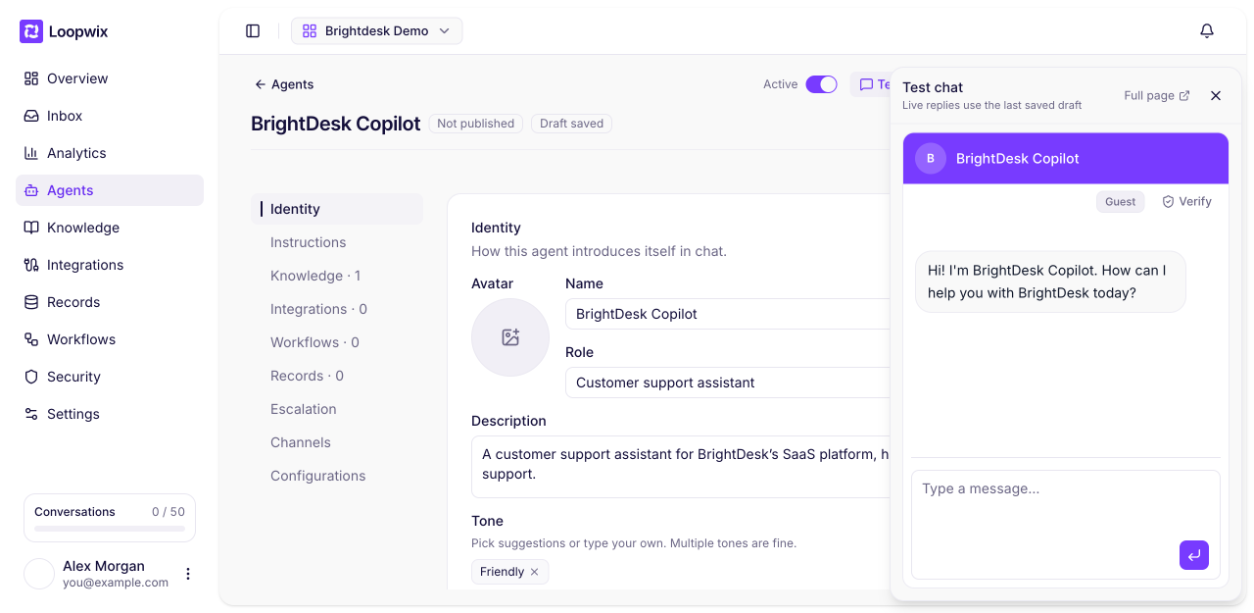
- Test with real questions. Take 30 to 50 real customer questions and run them in Test chat. Fix gaps in knowledge, not only in instructions.
- Run in parallel. Install the Loopwix website chat on a few pages or a staging site. Watch Analytics and the Inbox, then widen.
- Cut over. Replace the old widget with the Loopwix one. Keep the old tool read-only for history, and cancel it after a quiet week.
Can I bring my conversation history?
Not into Loopwix. There is no import for past conversations. Export them from your old tool and keep the file for your records. Use them to find the questions to test, and the gaps to fill.
What does a good parallel run look like?
Put Loopwix on one section of your site, such as your help pages, for a week. Compare three things with your old tool: questions answered without a person, hand-overs, and ratings. When Loopwix is at least as good, move it to the whole site.
Checklist
- Content exported and added as knowledge
- Instructions and hand-over rules written
- Workflows and integrations rebuilt
- 30+ real questions tested
- Parallel run reviewed
- Old widget removed, old tool kept read-only for history
Is there an import tool?
No. Loopwix does not import from other chatbot tools. Most of the work is adding your content as knowledge, which takes minutes for a public help center.
Can I keep my old chatbot running while I test?
Yes. Install the Loopwix chat on a staging site or a few pages, and keep the old one everywhere else until you cut over.
Do I need to rewrite my instructions?
Usually only a little. Copy them in, then remove rules about tone or format that Loopwix settings already cover. Test, and adjust.
Next steps
- Go-live checklist before you cut over.
- Turn your help center into an AI agent for the knowledge steps.
- Go live with confidence for the test matrix.
Used for: Compare Loopwix
Agency playbook
Run Loopwix AI agents for several clients: one workspace each, a repeatable setup, the right client access, usage caps, reporting and handover.
Troubleshooting
Find the fix from the symptom: wrong answers, a missing chat, messages that do not arrive, verification emails, integrations, workflows and access.