
Slack
Connect Slack with a bot token (or OAuth) so the agent can notify channels, reply in threads, message people and look up messages.
Connect Slack so the agent can notify your team, post in a channel or thread, and read context. It is the usual way to alert people when a conversation needs attention.
How do I get Slack alerts from my AI agent?
In Integrations, add Slack and connect it with a bot token or Slack sign-in. Enable the capabilities you want, such as posting in a channel or replying in a thread. Attach Slack to your agent, so it can notify your team when a conversation needs attention.
What the agent can do
| Capability | Type | Default minimum trust | Confirmation |
|---|---|---|---|
| List configured channels | Source | Identified | No |
| Look up message, Look up thread, Look up user | Source | Identified | No |
| Post message | Action | Identified | Yes |
| Post message reply | Action | Identified | Yes |
| Post direct message | Action | Identified | Yes |
| Add reaction | Action | Identified | Yes |
List configured channels returns the channels enabled for the workspace, with a note on what each is for. The agent uses it to choose the right one.
Connect
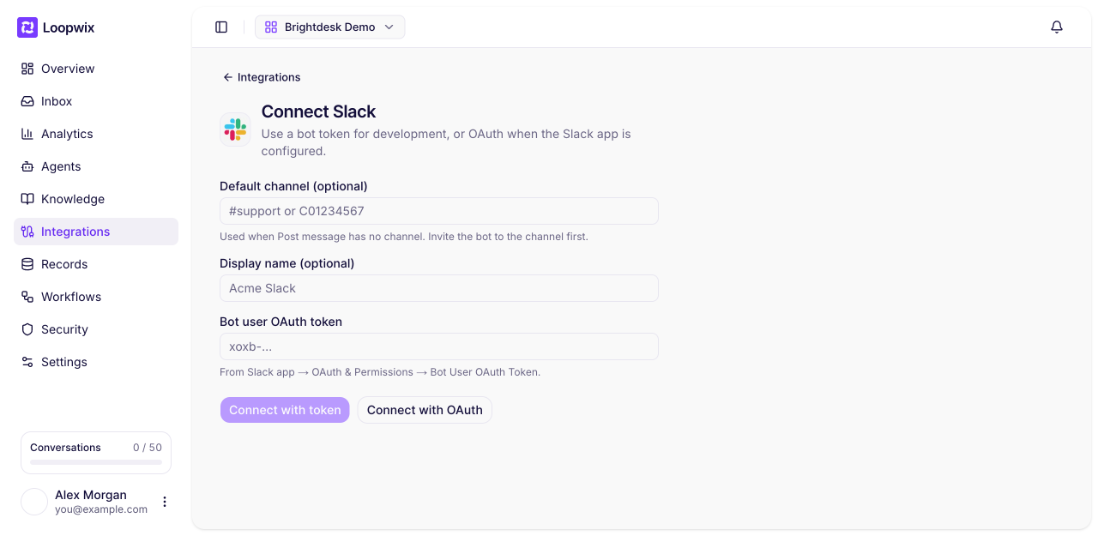
- Integrations → Add integration → Slack. The page is headed Connect Slack: "Use a bot token for development, or OAuth when the Slack app is" set up.
- Optionally set a Default channel, for example
#supportor a channel id such asC01234567. It is used when Post message names no channel. If it is private, invite the bot to it. - Optionally set a Display name, for example "Acme Slack".
- Either paste the Bot user OAuth token (Slack app → OAuth & Permissions → Bot User OAuth Token) and select Connect with token, or select Connect with OAuth.
- Select Test connection and Verify capabilities. The verify dialog helps check that the bot can post and read.
Bot permissions
The default bot scopes cover posting messages, reading channel, group and direct-message history, joining and managing channels, reading users and their emails, and adding reactions. Grant them on your Slack app if you use a bot token.
Tips
- Invite the bot to any private channel it should post in. It joins public channels by itself; a post to a private channel fails until it is a member.
- Use a dedicated channel such as
#loopwix-alertsrather than a busy one. - Pair Slack with escalation so a person is alerted when a conversation is handed over.
- Posting is an action, so it asks for confirmation. Keep message text free of private customer data unless your team channel is meant for it.
What the agent does with Slack
Customers never see Slack. The agent uses it to tell your team about something during a chat. For example:
- A customer reports a fault. The agent posts a short summary in
#support. - A large customer asks for a call. The agent sends a direct message to the account manager.
- A customer follows up on an earlier post. The agent replies in the same Slack thread.
Each post is an action, so the customer confirms it first. The chat shows "Confirm before posting this Slack message." A short example:
Customer: Your checkout page shows an error when I pay by card.
Agent: Sorry about that. I'll let the team know now.
The chat shows Confirm action. The customer selects Yes.
Agent: Done. I've told the team in #support, and they'll look into it.
Slack and hand-over alerts
Hand-over alerts are separate from these capabilities. To get a Slack message whenever a conversation is handed over, set a Slack channel on the agent's Escalation page. Hand-over is switched on by Loopwix on request. Each teammate can also choose Slack for their own notifications.
What Loopwix can access
The bot joins a public channel by itself when it first posts there. It can read and post only in channels it has joined, and read basic user details such as names and emails. Private channels stay closed to it until you invite it. Slack lists each permission in its scopes reference.
Can customers chat with the agent inside Slack?
No. Slack is for alerting your team. Customers reach the agent on your website chat and the messaging channels.
Why did a post fail?
Usually the channel is private and the bot is not a member. Invite it with /invite @your-bot in that channel and try again.
Will customer details appear in Slack?
Only what the agent writes in the post. Tell it in its instructions what to include, and keep private details out of busy channels.
Problems: Troubleshooting.