
Notifications
Choose which events reach you in the app, by email or in Slack, and understand the escalation notifications your team gets.
How do I get notified when a customer needs a person?
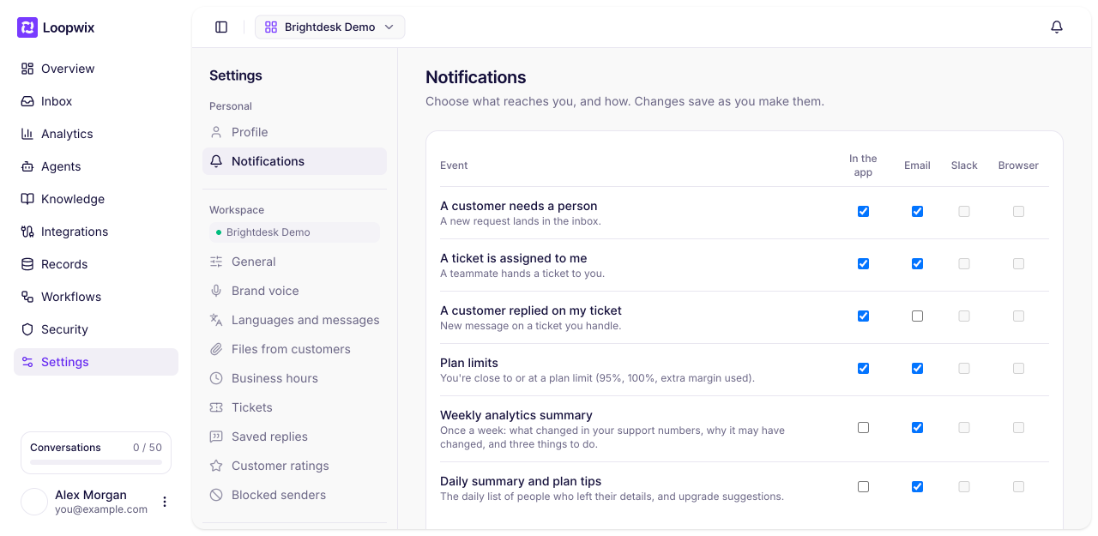
Open Settings, then Personal, then Notifications, and choose what reaches you and how: in the app, by email or in Slack. A customer needs a person is the event for new requests in the inbox. Changes save as you make them, and each teammate sets their own.
Events you can choose
Open Settings → Personal → Notifications. "Choose what reaches you, and how. Changes save as you make them."
| Event | What it means |
|---|---|
| A customer needs a person | A new request lands in the inbox |
| A ticket is assigned to me | A teammate hands a ticket to you |
| A customer replied on my ticket | New message on a ticket you handle |
| Plan limits | You are close to or at a plan limit |
| Weekly analytics summary | What changed, why it may have changed and three things to do |
| Daily summary and plan tips | People who left their details, plus upgrade suggestions |
Channels per event: In the app, Email, Slack and Browser.
- Email needs email sending configured on your server; the page says when it is not.
- Slack posts to the channel set on the agent's Escalation page.
- Browser notifications are "Coming soon".
The bell and the Activities view collect in-app notifications. The Inbox item in the sidebar shows an unread badge.
Settings that shape the inbox
Ticket statuses and tags, reopen and merge windows, saved replies, customer ratings and blocked senders: what each setting does.
Permissions and troubleshooting
Who can do what in the Inbox, and fixes for missing tickets, unsent replies, quiet notifications and the agent not handing over.