
Create bases and tables
Create a Records base, add tables from a starter pack, a blank table or the AI designer, and delete tables safely when you no longer need them.
Changing structure needs the Builder role or higher.
How do I create a table for my agent to use?
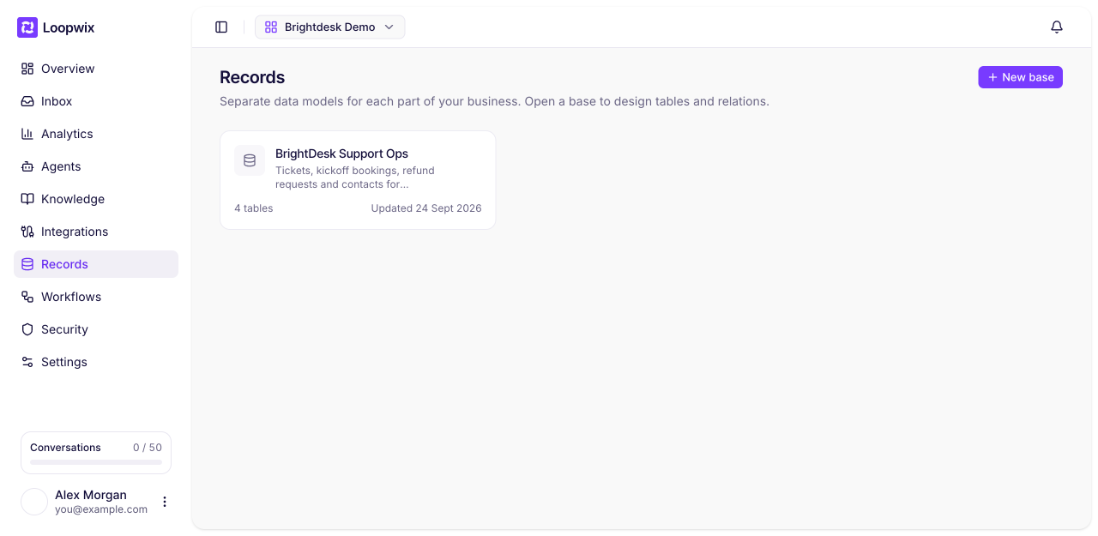
Open Records, select New base and give it a name. Then add a table from a starter pack, start from a blank table, or describe it to the AI designer. You need the Builder role or higher to change structure. Delete tables carefully, because agents may use them.
Create a base
- Open Records and select New base.
- Give it a name (up to 120 characters) and an optional description (up to 2,000). Group tables that belong together, for example one base for support operations and another for sales.
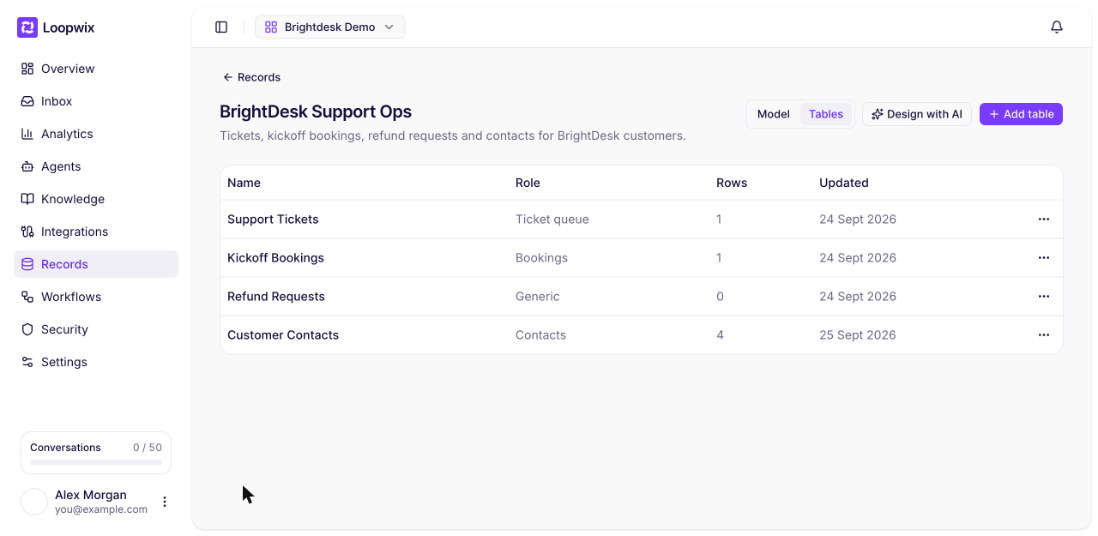
- The base opens on the Model view. Switch between Model (a canvas of tables and links) and Tables (a list with Name, Role, Rows and Updated).
Add a table
Select Add table. The dialog says "Start from a pack, or use Design with AI for related tables and fields." Give the table a Name, then choose Start from:
| Starter | What you get |
|---|---|
| Blank | "Start with no fields and add your own." |
| Ticket queue | "Support tickets: escalation, confusion, and human requests land here." Fields: Title, Description, Status, Priority (Low, Normal, High), Email, Reason (internal), Source. Status pipeline: Open, Waiting on customer, Waiting on us (open); Resolved (done) |
| Contacts | "People your business already knows: identity lookups, no pipeline." Name, Email, Phone, Notes |
| Leads | "Inbound interest: follow-up pipeline from New to Won or Lost." Name, Email, Phone, Interest, Source, Status, Consent, Notes. Open: New, Contacted, Qualified; done: Won, Lost |
| Bookings / appointments | "Reservations and appointment requests: Pending until staff confirm." Customer name, Phone, Email, Party size, Service, Date, Time, Location, Status, Notes. Open: Pending, Confirmed; done: Completed, Cancelled, No-show |
Every starter begins with AI access off, except Bookings, which allows the AI to read. You can change this in Table settings. Fields can be added, renamed or removed later; see Fields and relations.
Design with AI
For several related tables at once choose Design with AI ("Multi-table model on a canvas, with relations").
- Describe your business or what you want to track (up to 1,000 characters).
- Review the proposed tables, fields and links on the canvas. Edit anything before saving. A proposal has up to 6 tables with up to 16 fields each.
- Save the changes.
On an existing base, Design with AI shows your current tables on the canvas, and you can refine them. Use "Describe a change or redesign" and choose Related tables or One table. Then select Redesign or Refine, and finally Apply refine.
Open a table
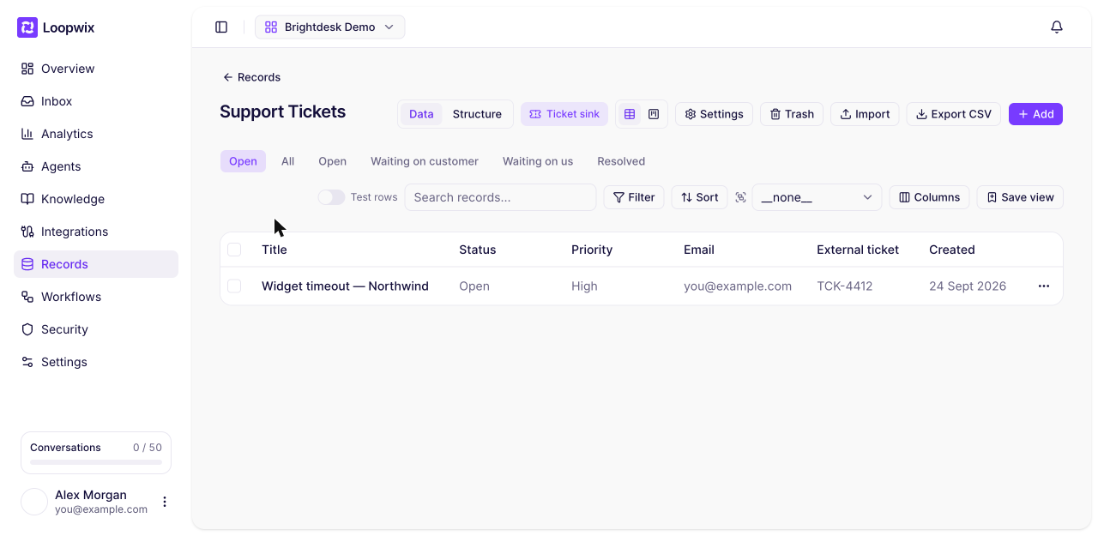
On the Tables list select a table (or double-click it on the canvas). A table has Data and Structure tabs and toolbar buttons for Settings, Import, Export CSV, Trash and Ticket sink.
Delete safely
Before something is deleted Loopwix checks what depends on it ("Checking what this affects…"). If an agent or workflow uses a table you see "This can't be deleted yet" with what to detach first. Deleting a table asks you to confirm with Delete table. Deleting a row moves it to Trash, where it can be restored.
Records
Records is the built-in Loopwix database for bookings, tickets, contacts and more, which your AI agent and workflows can read and update in chat.
Fields and relations
All 15 field types, how to add and reorder fields, how to link tables with references, lookups and rollups, and how to use the structure view and canvas.