
Google Sheets
Connect Google Sheets, choose the spreadsheets your AI agent may use, review what Loopwix learns about each sheet, then enable lookups and writes.
Use Sheets when a spreadsheet is your lightweight database: onboarding trackers, seat ledgers, invoice registers.
How do I let my AI agent use a Google Sheet?
In Integrations, add Google Sheets and allow only the spreadsheets your agent may touch. Loopwix analyses each sheet so you can review its playbook. Then enable capabilities such as Find row or Append row. Writing rows always asks for confirmation. Google Sheets is in beta.
What the agent can do
| Capability | Type | Default minimum trust |
|---|---|---|
| Find row, Get sheet data, List sheet playbooks | Source | Identified |
| Append row, Update row, Append or update row | Action (confirmation required) | Identified |
| Create sheet tab, Create spreadsheet | Action (confirmation required) | Identified |
Append or update row is an upsert: it updates the matching row if found, otherwise adds one. Enable actions only if agents should be allowed to run them.
Connect
- Integrations → Add integration → Google Sheets, headed Connect Google Sheets: "Sign in with Google to read and append spreadsheet data."
- Select Continue with Google and allow access. Sheets connects with sign-in only.
Loopwix asks for access to spreadsheets, the files it creates or opens, and a read-only list of your spreadsheets so you can pick them.
Setup tab
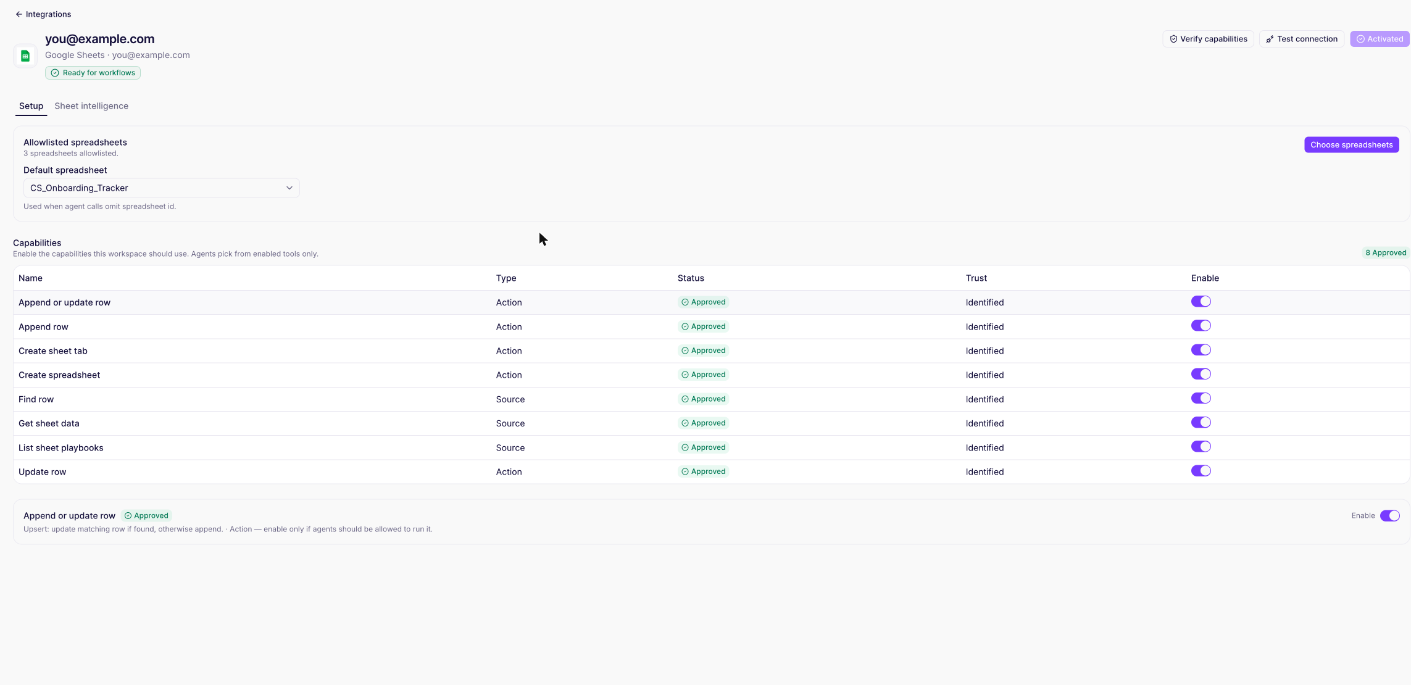
- Allowlisted spreadsheets: select Choose spreadsheets and pick the ones the agent may use. Only these can be read or written ("3 spreadsheets allowlisted").
- Default spreadsheet: used when a call does not name one.
- Capabilities: enable the ones you want.
Sheet intelligence tab
"Loopwix analyzes each allowlisted spreadsheet, then you review and verify the playbook before chat agents can use it."
- Analyze all analyses every allow-listed spreadsheet. Check for changes looks for edits since the last analysis.
- Each spreadsheet shows a Status (for example Verified) and a Purpose such as "Coordinate lookups and onboarding progress".
- Open one to review the tabs and columns Loopwix found and how it looks rows up, then verify it. A spreadsheet that has not been verified cannot be used in chat.
Verify and try
Select Verify capabilities. It tests your enabled tools and may write dummy rows, so verify against a test spreadsheet first.
Then attach the integration to an agent and try a lookup in Test chat.
Tips
- Give each sheet a clear header row; analysis depends on it.
- Allow-list the smallest set of spreadsheets you need.
- For customer data, raise the lookup's trust to Verified: the default is Identified.
- After you rename columns or move tabs, run Check for changes and verify again.
- For data your agent must store and manage, Records is built for it.
What customers can ask
A sheet works well for lists you already keep. For example:
- "Am I on the member list?" The agent finds the row that matches the customer's email.
- "Is my course place confirmed?" The agent reads the status column for their row.
- "Please add me to the waiting list." With Append row on, the agent adds a row after the customer confirms.
A short example:
Customer: Can you check whether I'm registered for the June workshop?
Agent: Sure. What email did you register with?
Customer: [email protected]
Agent: You're on the list for the June workshop, and your place is confirmed.
Limits and status
- Google Sheets is in beta.
- Only allow-listed spreadsheets can be read or written, and only after you verify their playbook.
- The default trust is Identified: the customer shared an email, but has not proved it. Raise it to Verified for anything private.
- Writing rows always asks the customer to confirm first.
Google describes each Sheets permission in its Sheets API scopes page.
Can the agent see all my Google Drive files?
No. It can use only the spreadsheets you allow-list. The read-only list of your spreadsheets is used only to let you pick them.
What happens if I rename a column?
The playbook may no longer match. Run Check for changes, review the playbook and verify it again.
Should I use Sheets or Records?
Use Sheets for a list your team already edits in Google. Use Records for data the agent creates and manages, with statuses and per-customer access.
Problems: Troubleshooting.
Calendly
Connect Calendly so your AI agent can list event types, check availability and, if you allow it, create booking links and invitees in chat. Beta.
Security, permissions and health
Who can manage integrations, how secrets are handled, how to read connection health, re-authorise and rotate credentials.