
Settings that shape the inbox
Ticket statuses and tags, reopen and merge windows, saved replies, customer ratings and blocked senders: what each setting does.
All under Settings → Workspace. Admin and above can change them.
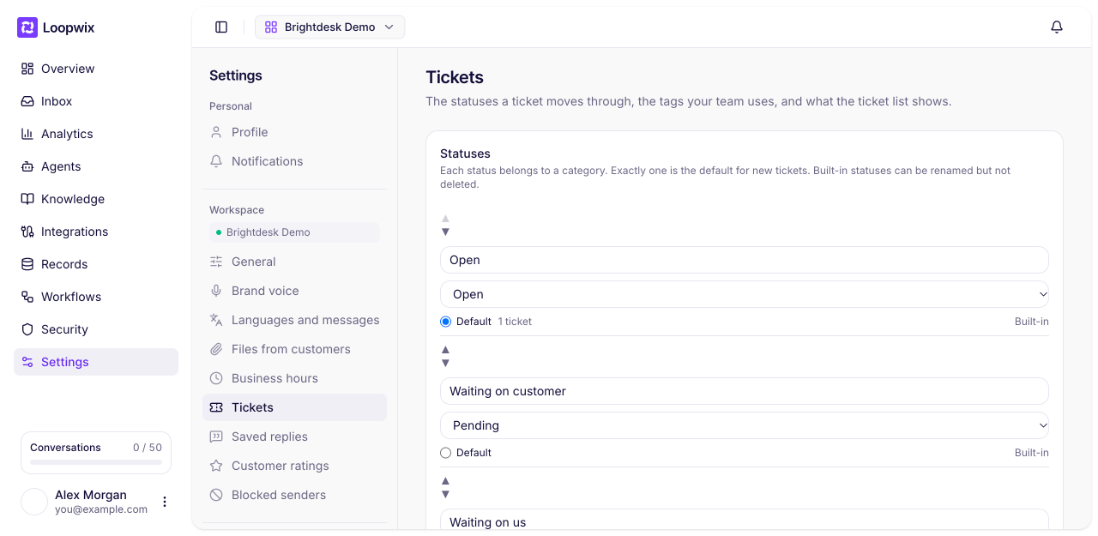
Tickets
| Setting | Meaning |
|---|---|
| Statuses | Each belongs to a category (Open, Pending, Closed); one is the default for new tickets. Built-in: Open, Waiting on customer, Waiting on us, Resolved. Rename but not delete built-ins; Add status for custom ones |
| Mark tickets as waiting when you reply | After a teammate replies, the ticket moves to a waiting status until the customer writes back |
| Hand the conversation back to the agent when a ticket is closed | If the customer writes again, the agent answers first |
| Reopen window (hours) | A customer message within this time after closing reopens the same ticket; after that it starts a new one (shown as 72 in a fresh workspace) |
| Closing message | Sent when you choose Close and tell the customer; empty sends nothing |
| How long a customer merge can be undone | Hours (72 in a fresh workspace) |
| Tags | The tags your team uses |
| Ticket list columns | Title, Description, Status, Priority, Email, Reason (internal), Source, External ticket |
Automation (routing, reminders, auto-close) is in Routing and business hours.
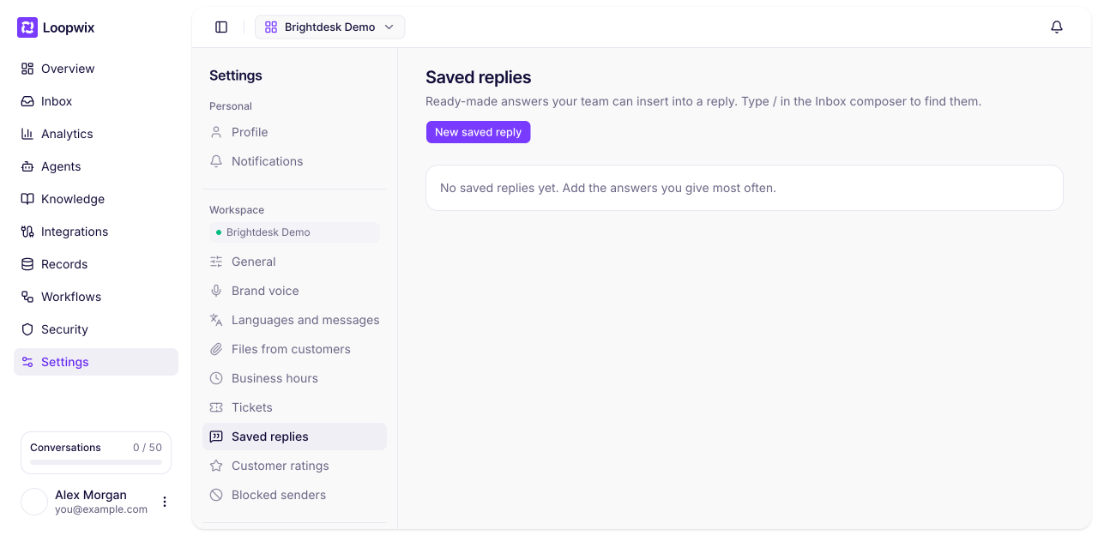
Saved replies
New saved reply with a title and body; insert with / in the composer. Variables: {{customer.first_name}}, {{customer.name}}, {{agent.name}}, {{ticket.number}}.
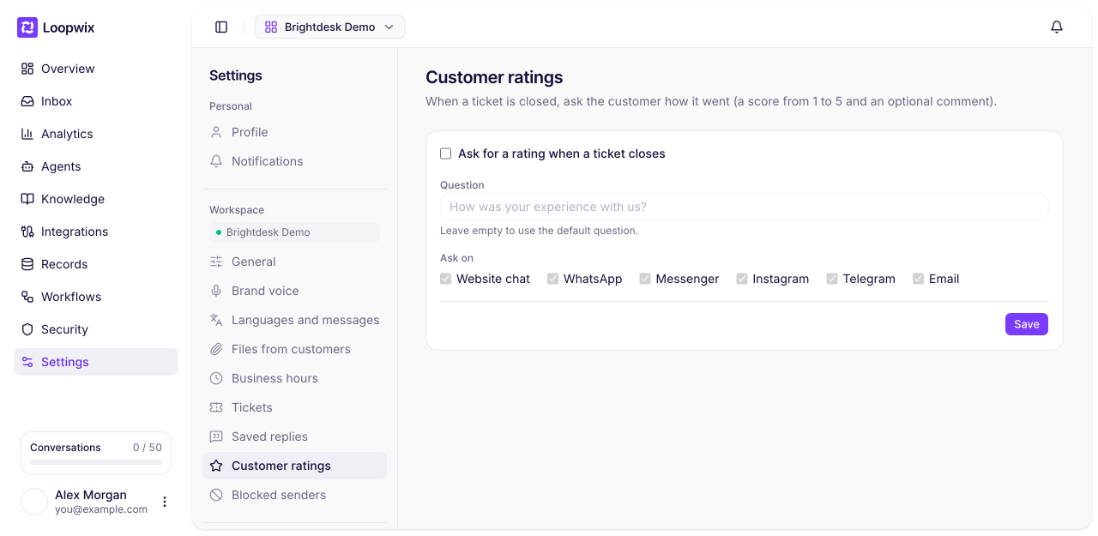
Customer ratings
Ask for a rating when a ticket closes: a score from 1 to 5 and an optional comment. Edit the Question (empty uses a default) and choose the channels it is asked on: Website chat, WhatsApp, Messenger, Instagram, Telegram, Email. Results appear in the details panel as Customer satisfaction and in Analytics.
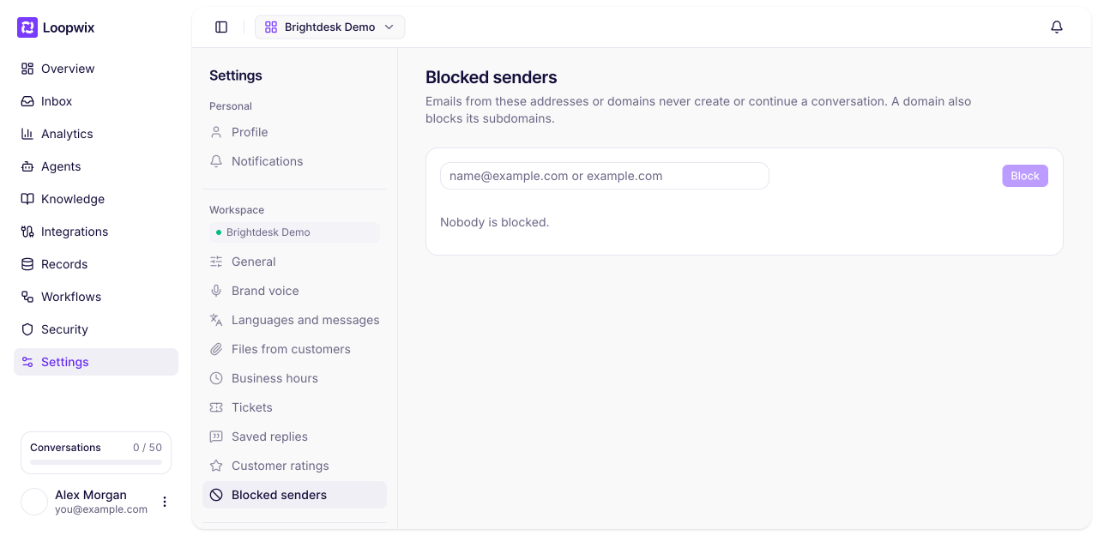
Blocked senders
"Emails from these addresses or domains never create or continue a conversation. A domain also blocks its subdomains." Use Block to add one; remove it later to unblock.
Business hours
Work the queue
Triage, reply, translate, assign, snooze and close tickets in the Loopwix Inbox, work in bulk, and take over a chat from the AI agent or hand it back.
Notifications
Choose which events reach you in the app, by email or in Slack, and understand the escalation notifications your team gets.