
Add an FAQ
Create question and answer pairs, optionally grouped by category, save them to the knowledge base, then review and publish.
An FAQ is the most reliable way to teach exact answers. Each FAQ item can hold many question and answer pairs.
How do I add FAQs to my AI agent?
Select Knowledge, choose FAQ, and add each question with its answer. Group related questions with a category if you like. Select Save to knowledge base to index it, then publish it. Until then it is a Draft, and agents cannot use it.
Create an FAQ
- Select Knowledge, then choose FAQ.
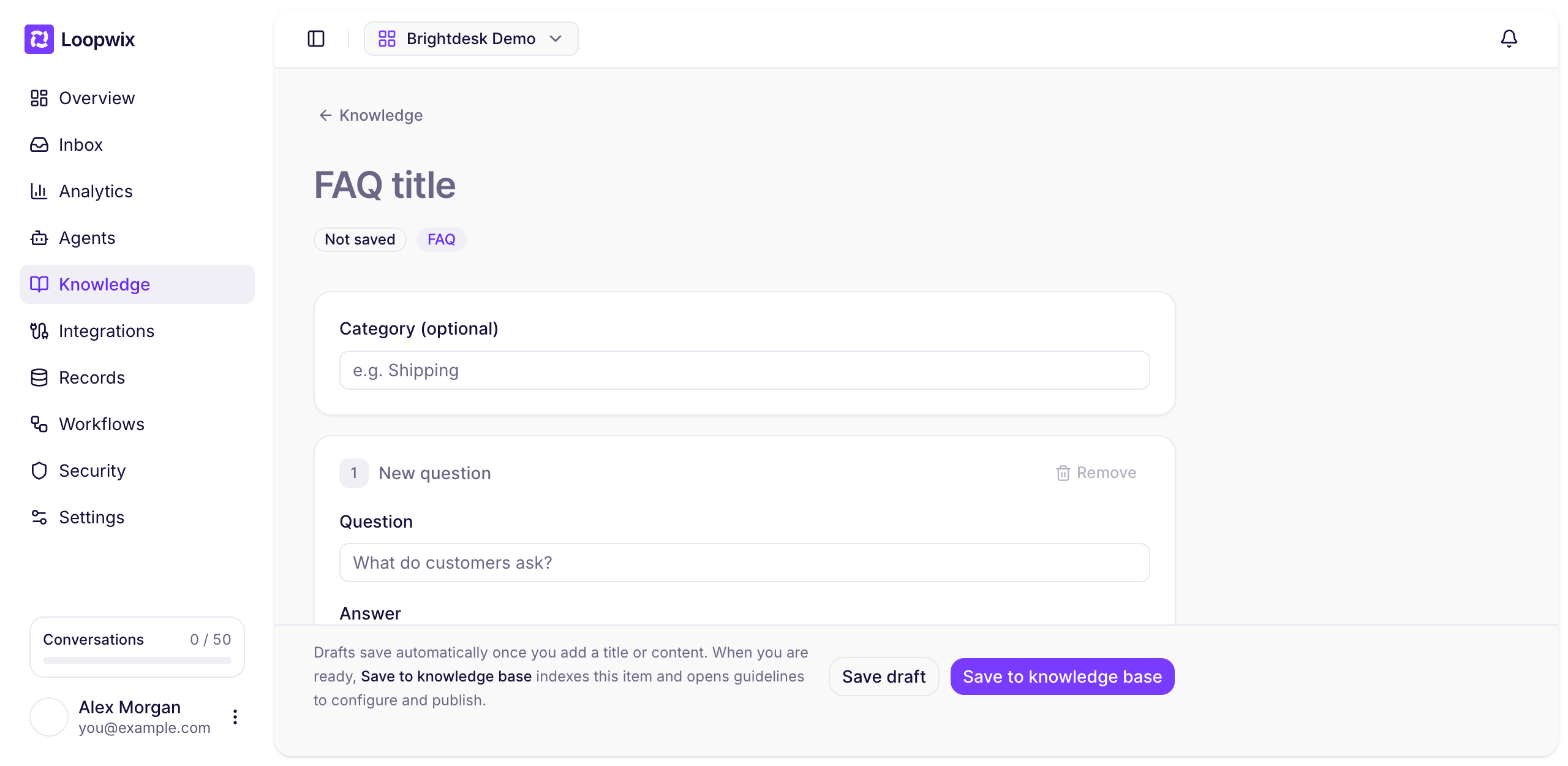
- Add a question ("What do customers ask?") and its answer ("Write the answer…"). Answers can use Markdown. Optionally add a category to group related questions.
- Add more pairs with the add buttons in the editor.
- Select Save to knowledge base. This indexes the FAQ; until then it is a Draft and agents cannot use it. You must add at least one question with an answer first.
- When the status is Needs setup, open it and configure and publish it.
Limits
| Part | Limit |
|---|---|
| Question | 2,000 characters |
| Answer | 50,000 characters |
| Category | 120 characters |
| Pairs in one FAQ item | 200 |
| FAQ name | 255 characters |
Editing later
If you edit an FAQ after saving, Loopwix reminds you: "Content changed. Save to knowledge base again, then review guidelines." Save it again so the new text is indexed.
Writing FAQs that work
- Write the question the way customers ask it, in their words, not yours.
- Put the full answer in the answer; do not say "see above".
- One question per pair, one fact per answer when possible.
- Use categories for topics such as Billing or Shipping.
- Add a second version of a question if customers phrase it very differently.
- Keep answers current. Review FAQs when prices or policies change.
When to use an FAQ
Use an FAQ for pricing, hours, delivery times, return rules and other short facts. For long policies, use a file or a text note.