
Members and invitations
Invite teammates to Loopwix, choose their role and the workspaces they can see, resend or remove invitations, and transfer account ownership.
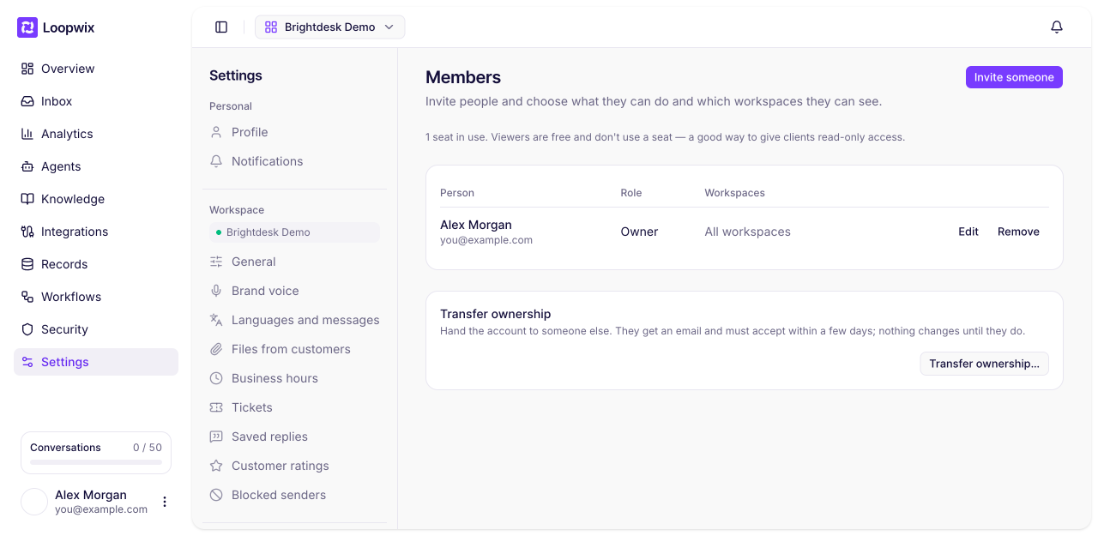
Open Settings → Organization → Members: "Invite people and choose what they can do and which workspaces they can see."
How do I invite my team to Loopwix?
Open Settings, then Organization, then Members. Enter a teammate’s email, choose their role and the workspaces they can see, then select Send invitation. Owners can always see every workspace. You can resend or remove an invitation, and transfer ownership of the account from the same page.
Invite
- Enter the email and choose a role (see Roles and teams).
- Choose Workspaces they can see. Owners can always see every workspace.
- Select Send invitation. "They get an email with a link to join. The link works once." Nothing changes until they accept.
Viewers are free: "Viewers are free and don't use one of your seats." Other roles use a seat on your plan.
Accept an invitation
The invited person opens the email link, signs in or creates an account, and joins. If the link expired or was used, ask an admin to Resend.
Change or remove
Use the row's actions to Resend an invitation, change the role or workspaces ("Changes apply the next time they use Loopwix"), or Remove the person. An Admin can invite and grant roles only up to Admin.
Transfer ownership
Transfer ownership… (Owner only): choose a person and Send transfer request. "Hand the account to someone else. They get an email and must accept within a few days; nothing changes until they do." After the transfer you lose Owner access; your past work stays.
Create, switch and pause workspaces
Add a Loopwix workspace for another brand, location or client, switch between workspaces, and pause one without losing any of its data.
Roles and teams
The five Loopwix roles, Owner, Admin, Builder, Support and Viewer, what each one may do, and how teams route new tickets to the right people.