
Versions and rollback
Every publish creates a version.
Every time you publish, Loopwix keeps a numbered snapshot of the agent. Version history lets you see what went live and switch back if something goes wrong.
How do I roll back my agent to an earlier version?
Select History in the agent toolbar to see every published version, then choose an earlier one to make it live again. Your current draft is never overwritten, so you can keep working on it. Every publish creates a new numbered version you can return to.
See versions
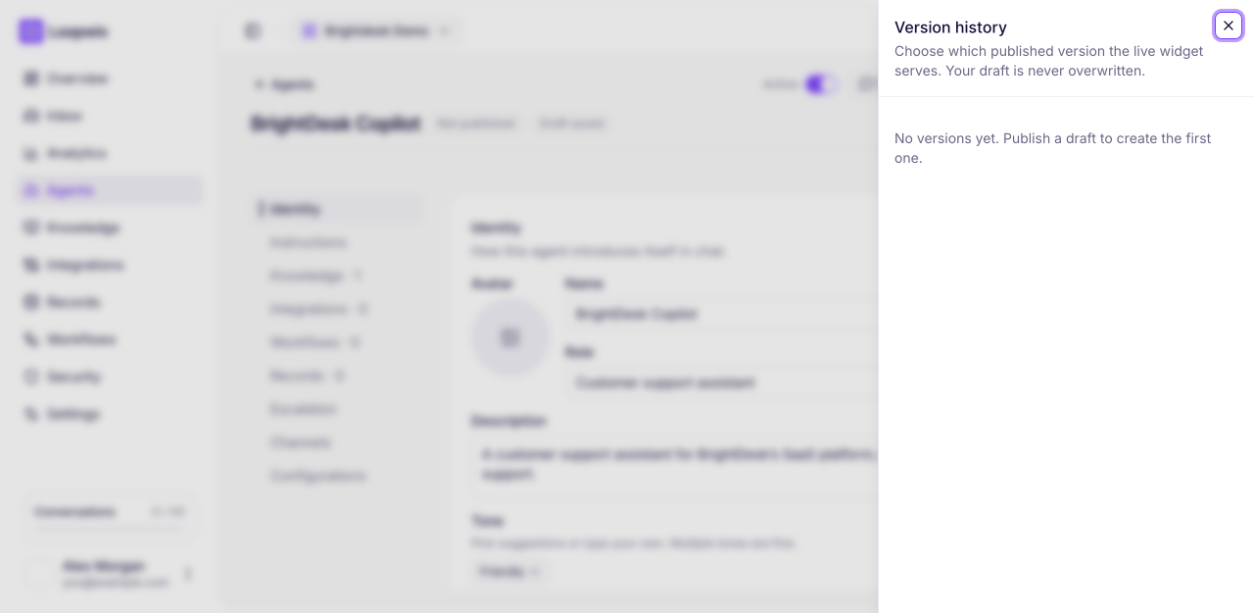
Select History in the toolbar. The Version history panel says "Choose which published version the live widget serves. Your draft is never overwritten." Each row shows:
- The version number, such as v3.
- A Live badge on the version customers see now.
- The version note you wrote when publishing, if any.
- When it was published.
- A Make live button on versions that are not live.
If there are none you see "No versions yet. Publish a draft to create the first one."
What a version contains
A version is a snapshot of the agent at the moment you published: its identity, instructions, attachments, escalation rules and website chat settings. Making an old version live brings that setup back for customers.
Go back to an earlier version
- In Version history, find the version you want.
- Select Make live.
- In the dialog Make vN live?, read: "The widget will switch to this version. Your current draft stays as-is and is not overwritten." Any version note is shown.
- Select Make live. A toast says Published vN.
Your draft is unchanged, so you can keep working and publish a new version later. Choosing the version that is already live does nothing.
Rollback and knowledge
A version pins which knowledge items were attached and the versions of the tools and workflows it uses. Knowledge content has its own publish step; see Knowledge.
Good habits
- Write a Version note each time you publish so you know what changed.
- If something goes wrong after publishing, make the last good version live first, then investigate in your draft.
- Test the draft in Test chat before publishing again.
Who can roll back
Owners, Admins and Builders can publish and make versions live. See Permissions.
Publish an agent
Publish your Loopwix agent: the saved draft becomes a numbered version that customers see. Pass the security check, then republish or roll back later.
Pause or switch off
Use the Active switch to take an agent out of service or bring it back, and know when to deactivate, roll back or delete instead.