
Attach integrations
Give an agent access to connected systems by adding an integration, choosing which capabilities it may use, and writing when it should use them.
An integration lets the agent look things up or do things in another system, such as checking an order or booking a call. You attach it to each agent that may use it.
How do I let my agent use a connected system?
Connect the system in Integrations and enable the capabilities you want. Then open the agent, select Integrations and attach it, choosing which capabilities this agent may use. Write a short rule for when to use them. Only enabled capabilities appear in the list.
Before you start
Connect the system in Integrations, and make sure the capabilities you want are verified, approved and enabled. See How integrations work. Only enabled capabilities appear here.
Attach an integration
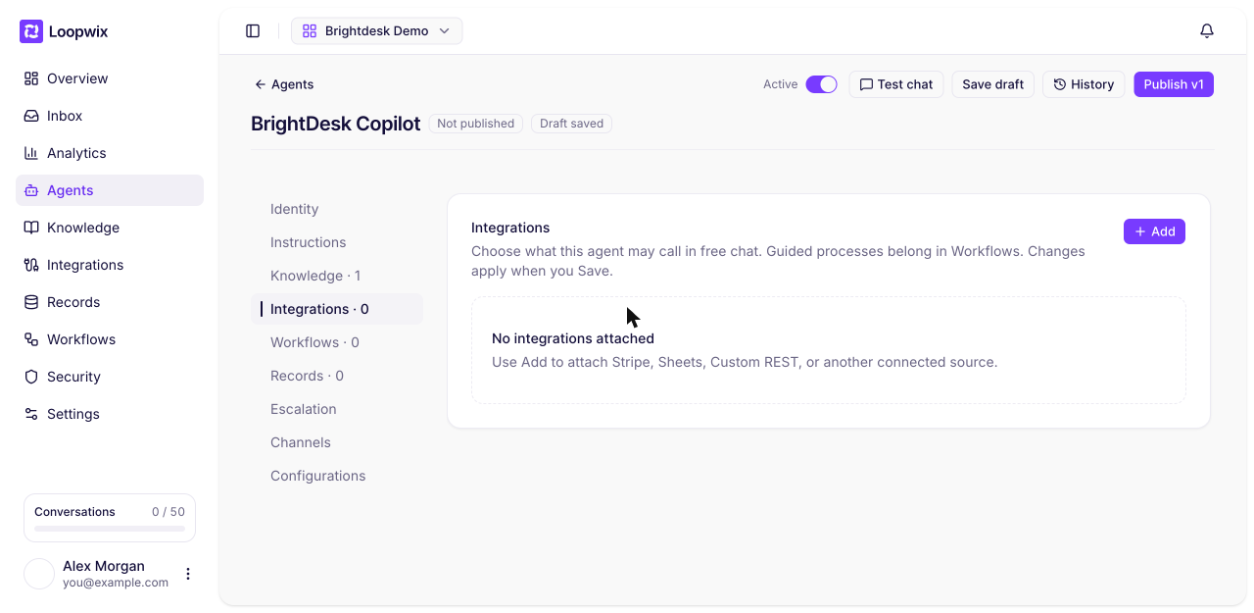
- Open the agent and select Integrations. The section says "Choose what this agent may call in free chat. Guided processes belong in Workflows."
- Select Add integration. The dialog "Attach a connected integration or Custom REST lookups to this agent." lists your connections. If it is empty, connect a source first under Sources.
- Open the new row. Choose the capabilities the agent may use. They are split into Lookups (read information) and Actions (change something).
- In When should this agent use the integration, write a plain-language rule. For example: "Use only for the visitor's own account after email is verified. Never invent ids."
- Select Save draft, then publish.
Reading a row
A closed row shows the integration name, the connected account and a summary such as "Lookups: Search orders · Actions: Cancel order". It shows "Actions off" when the integration has actions but you selected none, and "No capabilities selected" when you picked nothing. Remove a row with its menu.
Lookups and actions
| Kind | What it does | Care needed |
|---|---|---|
| Lookups | Read data, such as an order or an invoice | Require verification for customer-specific data |
| Actions | Change data, such as cancelling an order | Selecting an action lets the agent run it in free chat. Prefer a workflow with a confirm step for anything important |
Publishing checks these choices. For example, it blocks an action whose confirmation was turned off and warns when an action can be run freely from chat. See Publish an agent.
The usage rule
The usage rule (up to 8,000 characters) tells the agent when to use the integration and when not to. Be specific:
- When to use it: "when the customer asks about an order status".
- What it needs first: "after the customer has verified their email".
- What never to do: "never invent order numbers".
If a connection stops working
If a connection was revoked or deleted, the row is marked Unavailable and says "This connection is no longer active. Remove it before you Save." You cannot save until you remove it. Remove the row, then reconnect in Integrations and attach it again.
Limits
An agent can have up to 100 integration rows, each with up to 200 capabilities.
Safety
What a customer can actually do also depends on their trust level and each capability's minimum trust; see Security and verification.
Attach knowledge
Choose which published knowledge an agent may use in its answers by ticking items in the agent's Knowledge section and saving.
Attach workflows
Choose which workflows an agent may start in chat, such as cancelling an order or capturing a lead, by ticking them in the agent's Workflows section.