
Test, publish and attach
Test a workflow and read its safety strip, check the run history and inspector, publish a version, attach it to your agents and keep it healthy.
How do I test and publish a workflow?
Select Test in the designer to run the last saved version. Read the safety strip first: it says whether write actions run for real or are simulated. Use Test as a verified visitor for verified-only steps. Then publish a version and attach the workflow to your agents.
Test
Select Test in the designer. The Test run panel runs the last saved version of your draft, with email verification by code or link.
- Skip trigger starts at the first step; Test trigger also checks that your first message fits the Trigger. If it does not you see "Trigger did not match" with the reason.
- Test as a verified visitor simulates a customer who has passed verification, using the email you give, so you can test verified-only steps. Without it, the test goes through real verification: "Verify the email to continue this test run."
- Type as the customer ("Reply as the visitor…") and send. The canvas highlights the current step.
- Run again restarts. New test — start over as a new visitor begins fresh. Run history and View run logs open the logs.
The safety strip
The top of the panel shows how this test treats actions. The server picks the mode from your workspace settings; the test panel cannot change it.
| Mode | Meaning |
|---|---|
| Real mode | "Write actions in this test run execute against live systems." |
| Sandbox | "Write actions are simulated. Nothing reaches external systems." |
| Mock | "Capabilities return canned results." |
| Dry run | "Actions are validated and recorded but never executed." |
Reads are always real. Even when test safety is on, only destructive, financial or outbound communication capabilities are simulated. Other write actions in a test can still reach live systems. Use test accounts, and read the strip before you test an action. The workspace switch Allow real side effects in tests is described in Create and design a workflow.
If a step needs approval, the strip names the exact action and resource ("Approval requested"). The panel then asks Yes, continue or No, cancel.
Run history
The Run history button: "Each test or live run is one chat session with one matching log." It has Chat sessions and Session logs, with each session's Status, Passed nodes, Failed nodes, Node fail rate and Duration. Open a session for its Steps and an Execution trace of model, tool, node and error events. The trace shows the inputs and results of each step, so you can find where a conversation went wrong. Owners, Admins and Builders can see runs; Support can view them.
Publish
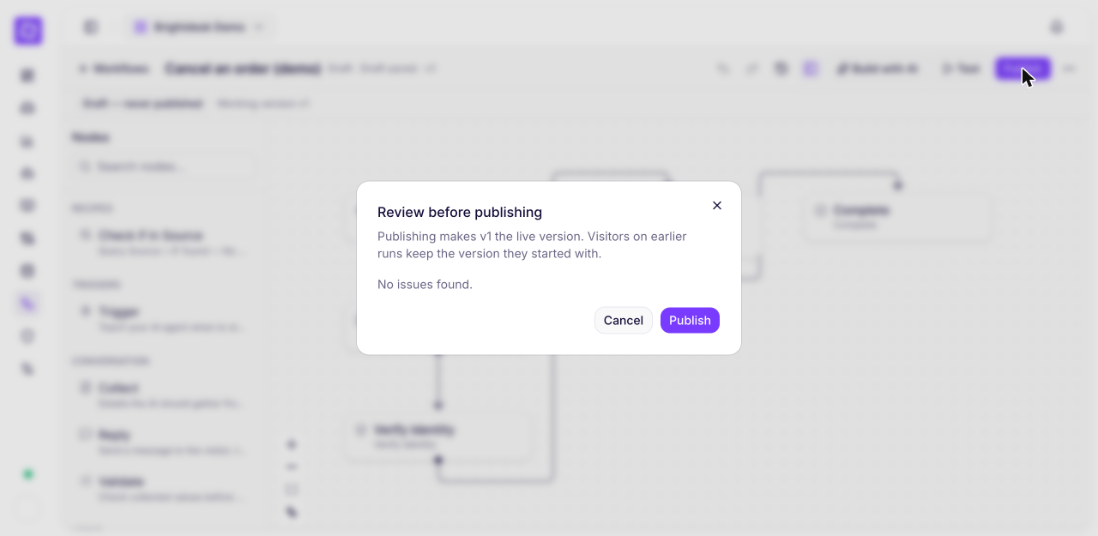
- Select Publish. Review before publishing says "Publishing makes v1 the live version. Visitors on earlier runs keep the version they started with." It lists problems, such as "The workflow has no Trigger node." or "Add at least one step after the Trigger.", with Go to node links. Problems marked Blocks publishing must be fixed. "No issues found." means you can go ahead.
- Capabilities the workflow uses are checked against their current version: Up to date, Compatible change, Needs migration or Breaking change. For a stale one, Migrate to current version creates a candidate you review, test and publish. Only Owners and Admins can migrate.
- Confirm Publish (or Publish anyway where allowed).
The workflow becomes the next version (v1, v2…) and the status bar changes from Draft — never published to Published — live. Edit afterwards and it shows Draft ahead of live until you publish again. People already mid-workflow finish on the version they started.
Attach to an agent
A published workflow does nothing until an agent has it.
- Open the agent, go to Workflows, search, and select the workflow ("No workflows to attach" means none is published yet).
- Save draft and publish the agent. The workflow shows an Active workflow badge.
See Attach workflows. AI agent can start this (in the workflow's own settings) must be on for the agent to start it in chat.
Pause or remove
More actions has Disable (agents stop starting it until you publish again), Duplicate (copy it as a starting point) and Delete (permanent). For a live emergency use Runtime controls with the Workflow scope.
Permissions
| Role | Can |
|---|---|
| Owner, Admin, Builder | Build, test, publish and attach workflows |
| Support | View workflows and runs |
| Viewer | No workflow access |
Migrating a changed capability and the workspace workflow settings are limited to Owners and Admins. See the permissions matrix.