
How integrations work
How every Loopwix integration works: a connection, its capabilities, a status for each (Draft, Tested, Approved), a minimum trust level and agents.
Every integration, whether it is Stripe or your own API, follows the same model. Learn it once and every connector makes sense.
The five parts
-
Connection. Your authorised link to the system: a sign-in, token or key. Credentials are stored encrypted and never shown again.
-
Capabilities. The individual things the connection can do, such as Lookup invoice, Search orders or Post message. Each is either a Source (it reads data) or an Action (it changes something).
-
Status of each capability:
Chip Meaning Draft Known, but not tested yet Tested Verified to work, waiting for you to approve it Approved Approved for chat and workflows. It must also have Enable switched on to be used Failed The last check failed Removed on server An MCP server no longer offers this tool -
Trust level. The minimum identity proof the customer needs before the capability runs.
-
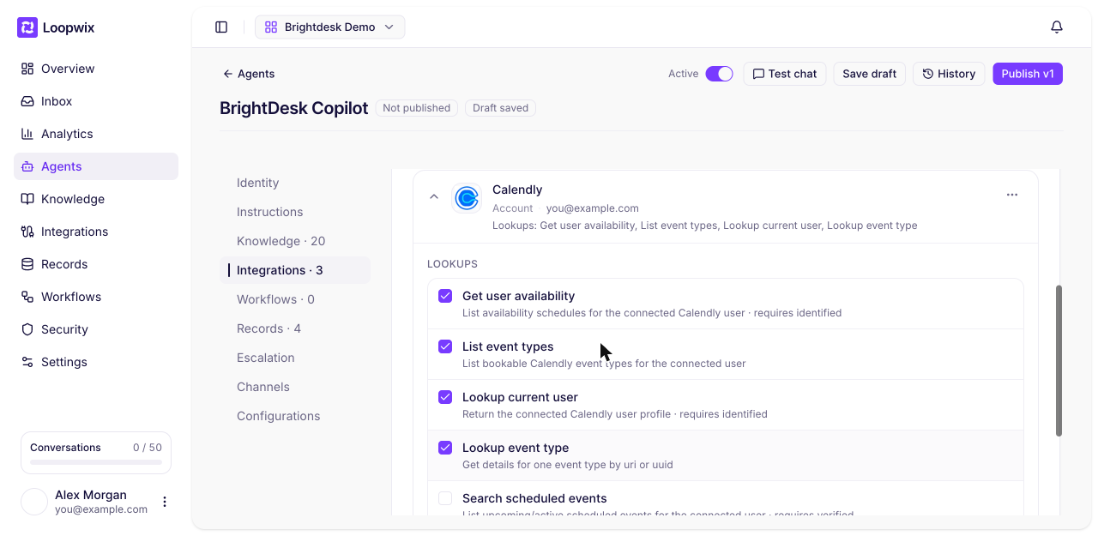
Attachment. Which agents may use the connection, and which of its enabled capabilities. See Connect and attach an integration.
Verify, approve, enable
A new capability is not usable straight away:
Verify (Loopwix runs a test) → Approved → Enable (the switch) → attach to an agent → try it in Test chat.
- Select Verify capabilities on a connection. The dialog says "Start verification to check that Loopwix can use this connection." While running it shows "Checking … capabilities…" with Progress, then a Summary with counts of Working, Skipped and Needs attention. Each step shows "Looks good.", "Skipped for this run." or "Needs attention.". Run again repeats it.
- Verification runs a real test scenario. It "may add dummy data in the connected app", and some tools create, update or cancel records. Use a test or sandbox account where you can.
- When you enable a capability that changes data, Loopwix asks Enable this action? It warns that the tool "can create, update, or cancel records" in the connected system.
Trust levels
Every capability has a minimum trust level: how sure the agent must be of who it is talking to before it may run.
| Level | Meaning | Typical use |
|---|---|---|
| Guest | Anyone | Public catalogs and non-sensitive lookups |
| Identified | The visitor has given an identity, not yet proven | Low-risk actions such as posting a team notification |
| Verified | The customer proved their email with a code or link | Orders, invoices, account data, anything private |
| Confirmed | Highest tier, for lookups staff must confirm | Rare, sensitive cases |
If the customer has not reached the level, the capability is refused and the agent can invite them to verify. See Security and verification.
What happens on every call
The same checks run for every capability, in this order of importance:
- Kill switches. If a runtime control has switched things off, the call is denied. See Runtime controls.
- Trust. The customer must meet the minimum trust level.
- Own data. For customer-private capabilities, results are bound to the verified customer. The model cannot choose whose data to read: email-like arguments are replaced with the verified identity. A capability that takes a customer or account id the system cannot verify is refused.
- Reads are limited. Reads return at most 20 rows by default, and sensitive fields are masked below Verified trust.
- Actions are confirmed. An action asks the customer to confirm first. A confirmation is single-use, tied to the exact details the customer saw, and expires after 5 minutes. A declined, expired or used confirmation is a denial, not a new prompt. Destructive operations always ask.
- Personal data stays inside. Personal data read in a turn is never sent to a generic REST endpoint you configured.
Reliability
Each call has limits so one slow system cannot hurt the others. By default a read times out after 8 seconds and is retried once. An action times out after 15 seconds, and a connection handles 4 calls at once. If a capability fails 5 times within a minute, Loopwix pauses it for about 30 to 45 seconds. It then tries one test call before resuming. MCP servers use their own timeout (5 to 120 seconds).
What the agent sees
The agent sees only capabilities that are Approved, enabled and attached. Anything else does not exist as far as it is concerned. Secrets are never given to the AI.
The same capabilities in workflows
Workflows use the same enabled capabilities, so one approval serves agents and workflows. A connection shows Ready for workflows when it can be used there. See Workflows.
Integrations
Connect the systems your AI agent uses in chat, such as Shopify, Stripe, Slack, Gmail, Calendly and Google Sheets, and control what it may do.
Connect and attach an integration
Step by step: pick a connector, connect it, verify and enable its capabilities, attach it to an agent, then test it in Test chat.