
Connect Calendly to your AI agent
Connect Calendly so your AI agent can list event types, check availability and, if you allow it, create booking links and invitees in chat. Beta.
Connect Calendly so the agent can show event types and offer a booking link.
How do I connect Calendly to my AI agent?
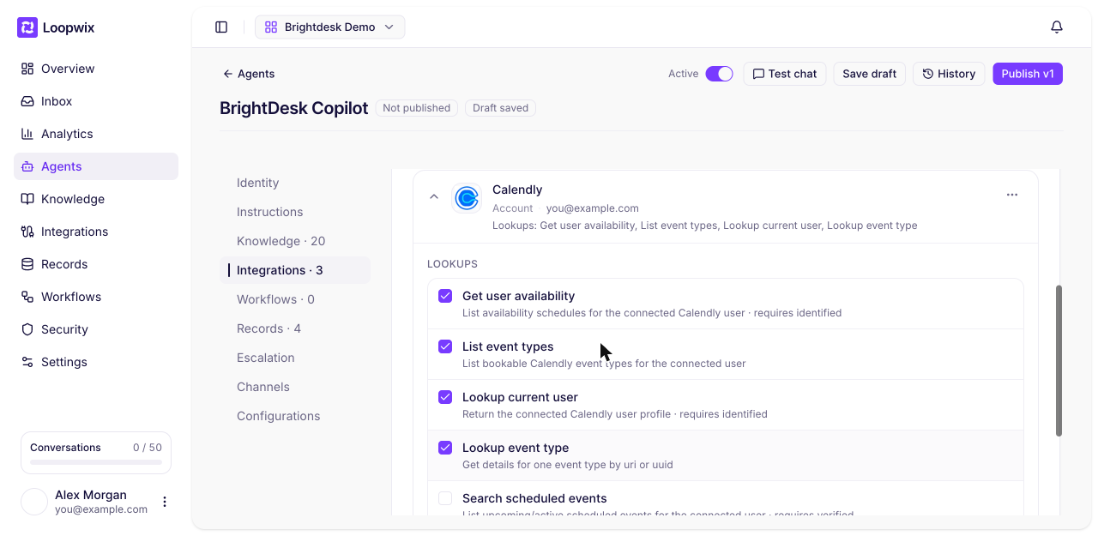
In Integrations, add Calendly and connect it with Calendly sign-in or a personal access token. Enable the capabilities you want, such as listing event types or creating a scheduling link. Then attach Calendly to your agent. Booking actions ask the customer to confirm before they run.
What the agent can do
| Capability | Type | Default minimum trust | Confirmation |
|---|---|---|---|
| List event types, Lookup event type | Source | Guest | No |
| Get user availability, Lookup current user, List groups, List organization memberships | Source | Identified | No |
| Search scheduled events | Source | Verified | No |
| Create scheduling link, Create share link, Create invitee | Action | Identified | Yes |
| Create one-off event type, Cancel scheduled event | Action | Verified | Yes |
Connect
- Integrations → Add integration → Calendly. The page is headed Connect Calendly: "Let the assistant list event types and create single-use booking" links.
- Select Continue with Calendly to sign in, or paste a Personal access token and select Connect with token.
- Select Test connection.
- Select Verify capabilities. For Calendly this "looks up the connected Calendly user, creates a one-off event type when needed, then creates a single-use scheduling link". It skips cancelling events.
- Switch on Enable for what the agent may use, then attach it.
Permissions
The default permissions let Loopwix read the user, event types, scheduled events and availability, create event types and create scheduling links. Booking on someone's behalf, creating shares, and reading organizations and groups need extra permissions that Loopwix requests when needed.
Tips
A good booking agent needs List event types, Get user availability and Create scheduling link. Sending the customer a single-use link is safer than booking on their behalf. Use Search scheduled events and Cancel scheduled event only with Verified customers.
What customers can ask
- "What can I book?" The agent lists your event types. Guests can see these.
- "Are you free on Thursday?" With Get user availability, the agent checks your free times. The customer must have shared an email first.
- "Book me in." With Create scheduling link, the agent sends a single-use link. The customer picks a slot on Calendly's own page, and Calendly confirms it.
- "Cancel my appointment." With Search scheduled events and Cancel scheduled event, a verified customer can cancel after confirming.
A short example:
Customer: I'd like a 30-minute consultation next week.
Agent: Of course. What's your email, so I can send you a booking link?
Customer: [email protected]
Agent: Here is your personal booking link for a 30-minute consultation. It works once, and Calendly will email you a confirmation.
Limits and status
- Calendly is in beta.
- The agent books through Calendly only. A Google Calendar integration is on the roadmap, and Calendly itself can sync with Google Calendar.
- There is no reschedule capability. Calendly's own emails give the customer reschedule and cancel links.
- Calendly decides which slots are free, from your Calendly settings.
Calendly's developer documentation explains event types, availability and scheduling links.
Do customers need a Calendly account?
No. They open the link and pick a time, as with any Calendly booking page.
Can the agent book on the customer's behalf?
Yes, with Create invitee, after the customer confirms. It needs extra Calendly permissions. A single-use link is the safer default.
Can it book for a team?
It works with the event types of the connected Calendly user. List groups and List organization memberships let the agent read your Calendly organization.
For a full walkthrough, read Build an AI booking agent.
Problems: Troubleshooting.
Used for: AI appointment booking
Gmail
Connect the business Gmail account with Google sign-in so the agent can read mail, draft, reply and send, with changes gated by confirmation.
Google Sheets
Connect Google Sheets, choose the spreadsheets your AI agent may use, review what Loopwix learns about each sheet, then enable lookups and writes.