
Tour of the Inbox
A guided look at the Inbox: the views panel, filters and search, the conversation, the details panel, and the table view.
Open Inbox in the sidebar. (It can be switched off per deployment; if you do not see it, ask your admin.)
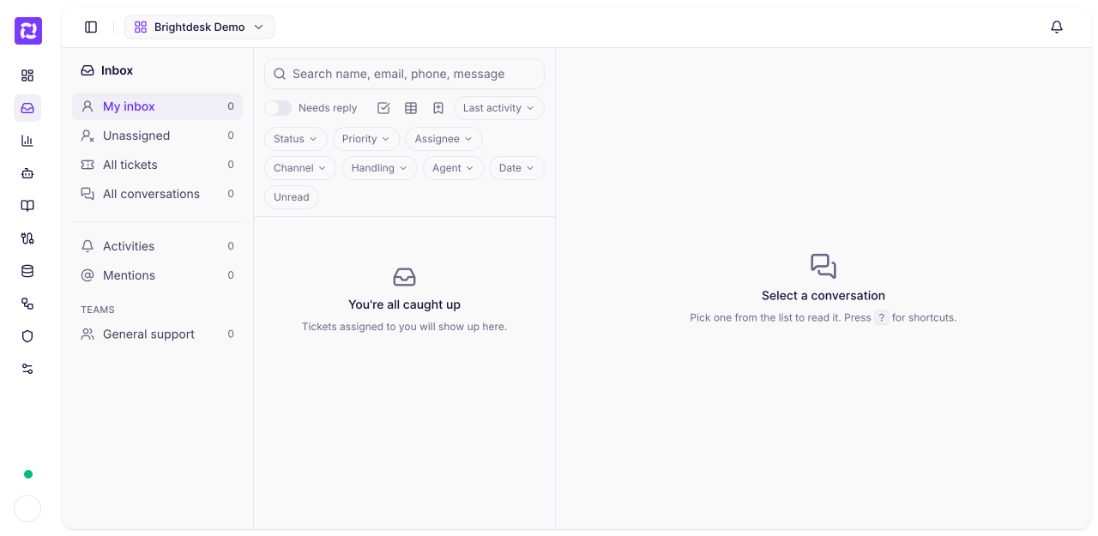
Views (left)
| View | Shows |
|---|---|
| My inbox | Tickets assigned to you |
| Unassigned | Tickets nobody owns yet |
| All tickets | Every ticket |
| All conversations | Every conversation, including ones the agent handled alone |
| Activities | Notifications for your team's activity |
| Mentions | Notes that mention you |
| Teams | One entry per team, e.g. General support |
Each shows a count. Save your own with the bookmark icon (Save this view, View name). Deleting a view removes it for everyone in the workspace but not any conversation.
Search and filters
Search by "name, email, phone, message or #ticket". The Needs reply switch narrows to conversations waiting on you. Filters: Status, Priority, Assignee, Channel, Handling, Agent, Date, Unread; sort by Last activity. Use Select several for bulk actions and the table icon for a table view.
Handling values: Agent answering, Waiting for a teammate, Teammate handling, Paused.
The conversation
Messages from the customer, the agent and teammates, with internal notes and attachments. System events appear too, such as "Handed to a person", "Assigned", status and priority changes, snoozes and survey results. Hide or show events with H. A header has previous/next (K / J), More actions and Take over.
The details panel (right)
Customer details, with verified ones marked; others "come from the customer or their channel". Then Linked records and the assistant's summary and title ("Estimated by the assistant"). Then earlier conversations, First reply time, Customer satisfaction, assignee, status, priority, tags and team. Show or hide it with ], the views list with [.
Keyboard shortcuts
Press ? for the cheat sheet or Ctrl/⌘ + K for the command palette. Full list: Keyboard shortcuts.
| Key | Action |
|---|---|
| J / K | Next / previous conversation |
| Enter | Reply |
| N | Internal note |
| A | Assign to me |
| W | Waiting on customer |
| C | Close |
| U | Mark as unread |
| / | Search (in the composer: saved replies) |
| Ctrl/⌘ + Enter | Send |
Routing and business hours
Set your team schedule and holidays, assign new tickets automatically and let Loopwix remind, escalate and close quiet tickets.
Work the queue
Triage, reply, translate, assign, snooze and close tickets in the Loopwix Inbox, work in bulk, and take over a chat from the AI agent or hand it back.