
Upload files
Upload PDFs, Word, Excel, PowerPoint, text, Markdown, CSV, HTML or image files as knowledge for your Loopwix agent, then review and publish them.
Uploading is the quickest way to bring existing documents into Knowledge.
How do I train my AI agent on PDFs and documents?
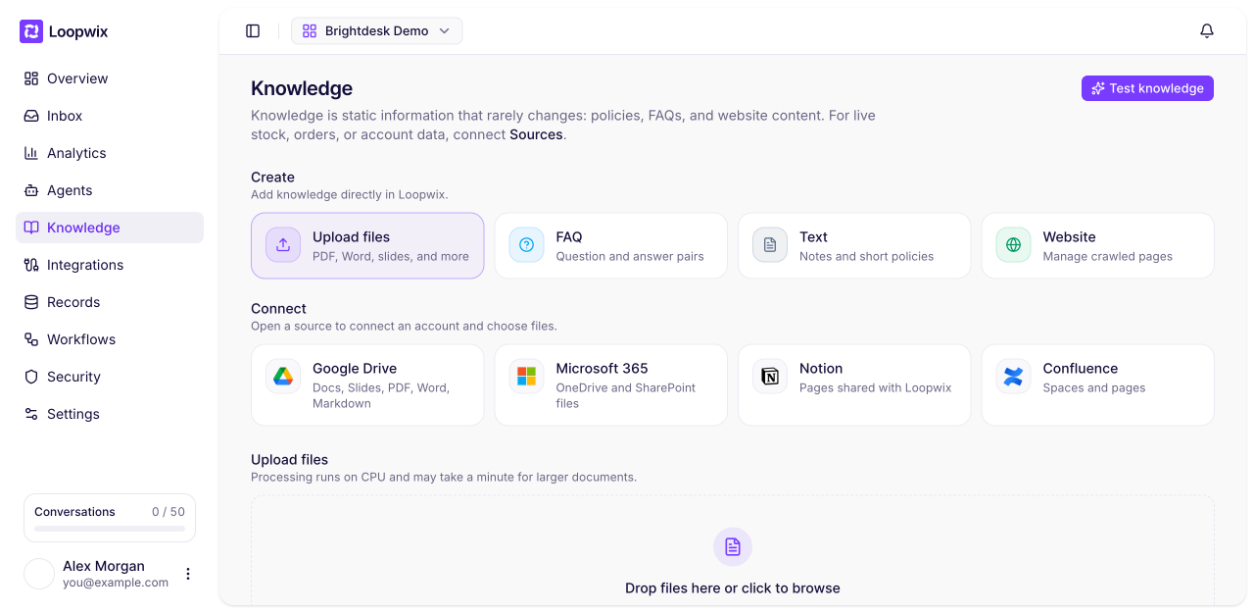
Select Knowledge, choose Upload files, and drag in your files or browse for them. You can upload several at once. Each file goes through Processing, then shows Needs setup. Open it, configure its guidelines and publish it, so your agent can answer from it.
Upload
- Select Knowledge, then choose Upload files.
- Drag files into the upload area ("Drop files here or click to browse"), or choose them. You can select several at once.
- Wait for each file to upload (Uploading…) and move through Processing.
- When the status is Needs setup, open the item and configure and publish it.
Accepted files
PDF, DOCX, XLSX, PPTX, plain text, Markdown, CSV, HTML, and images (PNG, JPEG, WebP, TIFF). The file's extension and real type must agree. A file can be up to 25 MB and up to 100 pages, and a workspace holds up to 40 documents. See Limits and formats.
What happens to the file
- It is uploaded and checked by a safety scan. A file that fails the scan is held back and shown as Failed; it is never searchable.
- It is read, including layout such as tables and headings.
- It is split into passages that keep their page or section, and indexed.
- It appears in the library as Needs setup.
Citations can later show the document name and page; see Citation modes.
Preparing good files
- Prefer text-based PDFs. Scanned pages are harder to read; export a text version if you can.
- One topic per file works better than one huge handbook.
- Remove outdated pages before uploading.
- Give files clear names. The name shows in citations and in the library.
Spreadsheets
Excel and CSV files can be uploaded as knowledge. For data you want the agent to read and change, use Records instead.
Sending the original file to customers
If a file is meant for customers, you can let the assistant send it when asked. See Guideline fields.
If it fails
Tour the Knowledge library
Tour the Loopwix Knowledge library: every item with its status, search and filters, and the cards that add files, FAQs, text, websites and connectors.
Add an FAQ
Create question and answer pairs, optionally grouped by category, save them to the knowledge base, then review and publish.