
Tour the Knowledge library
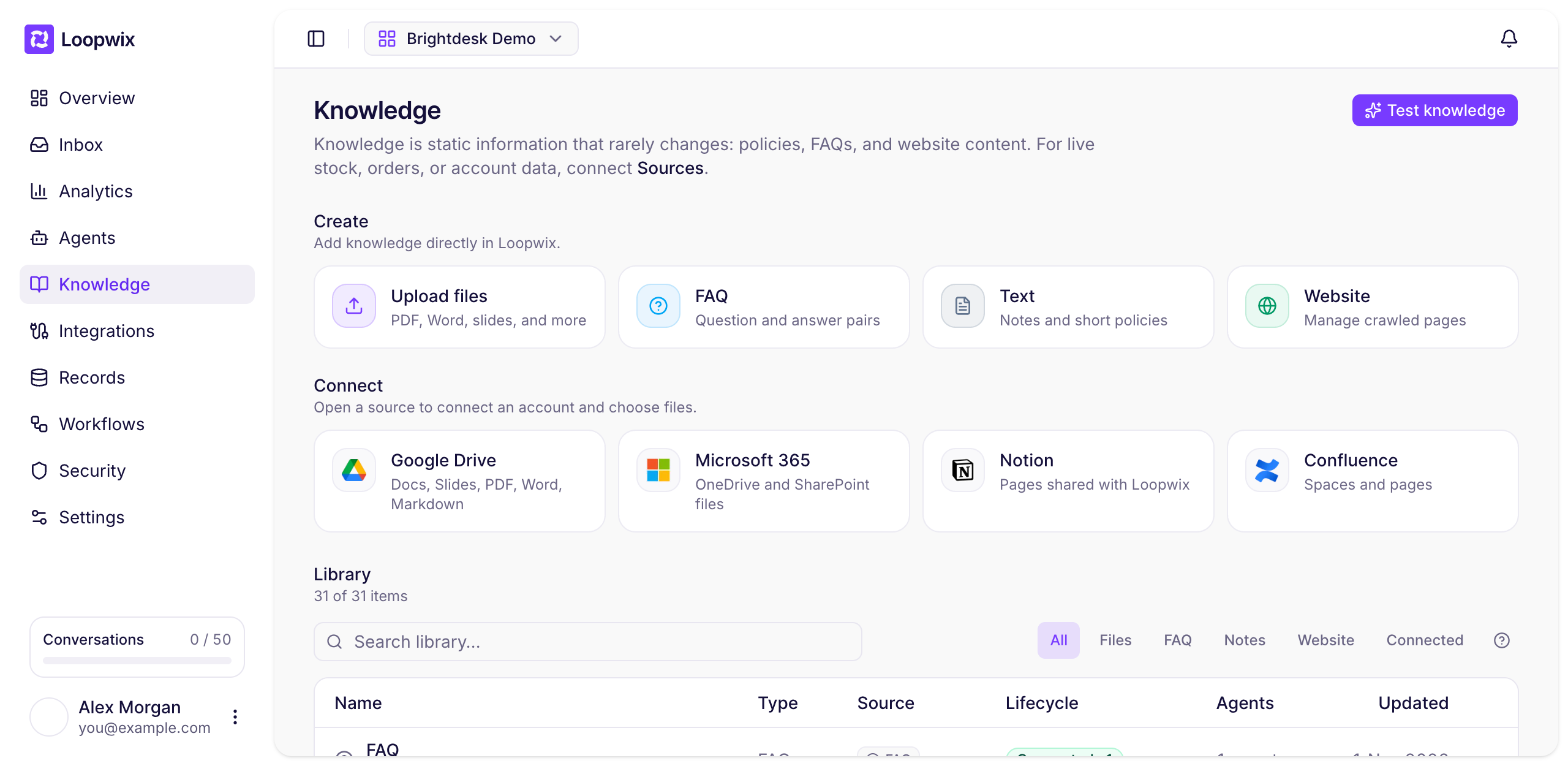
Tour the Loopwix Knowledge library: every item with its status, search and filters, and the cards that add files, FAQs, text, websites and connectors.
The Knowledge library is the home of everything your agents may know. Select Knowledge in the sidebar.
Where do I find everything my agent knows?
Select Knowledge in the sidebar to open the library. It lists every knowledge item with its status, and you can search and filter the list. The cards at the top add new content: files, FAQs, text, website pages and connectors such as Google Drive.
What you see
- Source cards at the top: Upload files (PDF, Word, slides and more), FAQ (question and answer pairs) and Text (notes and short policies). Website shows Manage crawled pages once you have some.
- Connector cards: Google Drive, Microsoft 365 (OneDrive and SharePoint files), Notion (pages shared with Loopwix) and Confluence (spaces and pages).
- A table of all items, one row each, with a Lifecycle column showing a status badge; see Lifecycle and statuses.
- A Search library… box to find items by name.
- Test knowledge, which opens the knowledge test chat; see Test your knowledge.
- A help popover called Knowledge lifecycle that explains the stages.
- An empty state until you add something: "No knowledge yet. Choose a source above to upload files, add FAQ or text, crawl a website, or connect Google Drive or Microsoft 365."
If a search finds nothing the table says No matching items.
What the badges tell you at a glance
A quick scan of the Lifecycle column shows what needs your attention. Amber Needs setup items need guidelines, and blue Ready to publish items need publishing. Green Ready for agents and Connected items are in good shape. Failed items are shown in red.
From a row
Open an item to configure it, edit its content, disable it, archive it or delete it. See Configure and publish and Remove knowledge. While an item is still indexing, the page says "Indexing in progress. Configure when it shows Needs setup."
Website pages and connectors
- Imported website pages are grouped under Manage crawled pages with their own filters (including Archived), a Last crawled time and Check for updates. See How website freshness works.
- Each connector has its own page with synced documents and sync settings. See How connector sync works.
Limits
A workspace holds a limited number of items and storage; see Limits and formats.
Who can use it
Owners, Admins and Builders can add and edit. See Roles and permissions.
Lifecycle and statuses
Every status a Loopwix knowledge item can show, from Draft and Processing to Ready for agents, Failed and Archived, and what to do next at each.
Upload files
Upload PDFs, Word, Excel, PowerPoint, text, Markdown, CSV, HTML or image files as knowledge for your Loopwix agent, then review and publish them.