
Work with records
Add, edit, find, filter, sort, import and export rows in Records, switch between table, board and calendar views, and restore rows from the trash.
Anyone with the Support role or higher can edit rows. Viewer can only look. See Troubleshooting, limits and permissions.
How do I edit and import rows in a table?
Open a table on its Data tab to search, filter and sort rows, or switch to board or calendar view. Edit a row in place or use bulk actions on several. Import and export rows from the same tab. Anyone with the Support role or higher can edit rows.
The Data tab
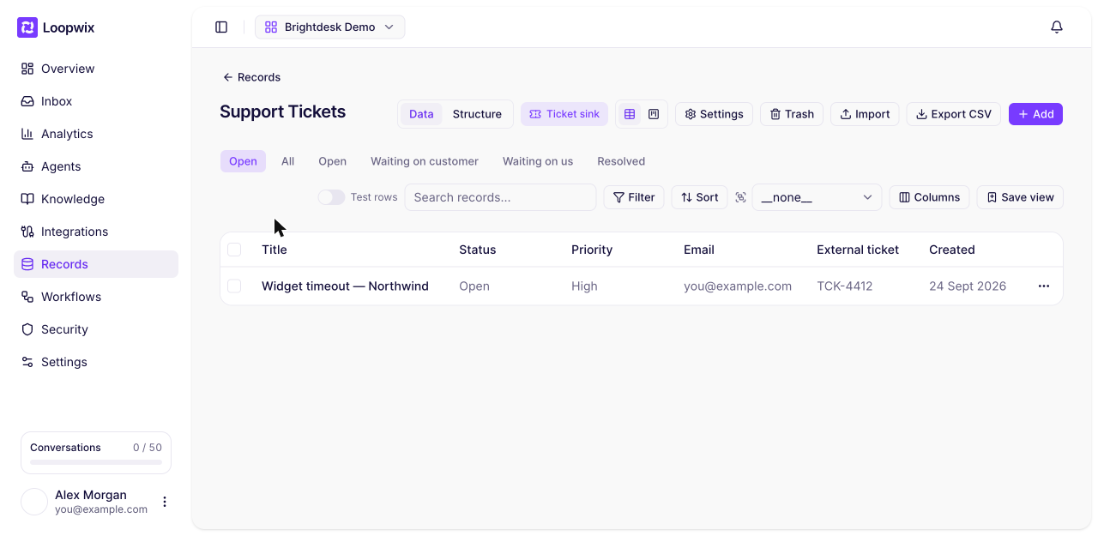
- Status tabs (for a table with a status pipeline): Open (everything unfinished), All, and one tab per stage.
- Search records…, Filter and Sort narrow the list. Filters can combine conditions such as is, is not, contains, greater than, less than, empty or not empty.
- Columns chooses which fields show.
- Save view keeps your filters, sort, columns and layout so you can return to them. Saved views appear as Views:, each with Remove view.
- Test rows shows rows created while testing, so test data does not mix with real data. You can mark a row as a test record when you add it.
- Add record creates a row; the ... menu on a row offers Edit, Duplicate and Delete. Tick rows to get the bulk bar.
The list loads in pages of up to 100 rows.
Table, board and calendar
Use the layout buttons next to the toolbar:
- Table view: a spreadsheet-style grid. You can group rows by a field.
- Board view: a kanban board with a column per option of a choice field ("Board by", usually Status). Drag a card to another column to change its stage.
- Calendar view: rows placed on a date or date-time field ("Date field"), month by month.
Edit a row
Open a row to edit its fields. The side panel shows related rows and an activity timeline of who or what changed the row, and when. Entries read "Record created", "Record updated" or "Status changed". The actor can be a person, an agent or a workflow, so you can trace automated changes.
In the ticket table, extra columns show the conversation: Last message, Waiting and Handled by. Each row has Open conversation and Copy conversation ID, and there is a My tickets filter.
Bulk actions
Tick rows (Select all selects the page) and use the bar:
| Action | What it does |
|---|---|
| Set status | Moves every selected row to a status |
| Set field | "Applies the same value to every selected row." |
| Delete | Moves the rows to Trash |
| Restore | In Trash, brings them back |
A bulk action covers up to 100 rows at a time. The result reports how many updated and how many failed.
Import and export
-
Import opens "Import CSV / TSV": "Paste a spreadsheet export or tab-separated rows. Map columns, then create or upsert." You can Upload file or Paste data. The first row is headers, comma or tab separated; from Excel, copy the cells and paste them.
- Provide the data (a header row and at least one data row).
- In Column mapping, map each column to a field. Map at least one.
- Choose Create new rows or Upsert by unique field (update the row that matches). Upsert needs a field marked unique; the dialog says "Mark a field as unique in Structure to enable upsert."
- Continue. A dry run reports "Dry run OK" or lists rows that would fail ("Row 3: …"). Then import.
One import handles up to 1,000 rows.
-
Export CSV downloads the table.
Trash
Deleted rows go to Trash ("Soft-deleted records. Restore to bring them back."). Select Trash to see them and Restore to bring one back. If a row was linked to other rows, deleting it clears those links ("Record moved to trash and links cleared").
Fields and relations
All 15 field types, how to add and reorder fields, how to link tables with references, lookups and rollups, and how to use the structure view and canvas.
Status pipelines
Turn a Status field into a work queue: choose the stage field, mark each stage open or done, set the starting status and restrict transitions.