
Table settings and access
Control what AI agents may do with a Records table, who may see its rows in chat, the trust level needed, status changes and automations.
Open a table and select Settings. These settings are the safety rail for everything that touches the table. They save as Table settings saved.
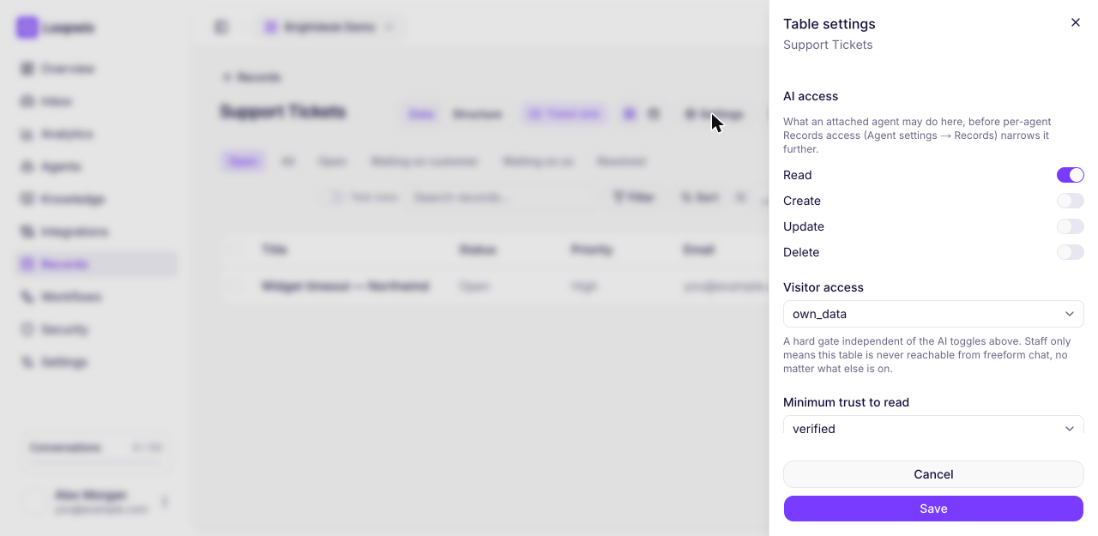
AI access
"What an attached agent may do here, before per-agent Records access (Agent settings → Records) narrows it further."
| Switch | Meaning | Default for a new table |
|---|---|---|
| Read | The AI may look up rows | Off (On for the Bookings starter) |
| Create | The AI may add rows | Off |
| Update | The AI may change rows | Off |
| Delete | The AI may delete rows | Off |
Each agent can only narrow this further; see Records for agents and workflows. Turn on only what the table needs. Deleting also always asks the customer to confirm.
Visitor access
A hard gate, independent of the AI switches. New tables start as Staff only.
| Option | Meaning |
|---|---|
| Staff only | "Never reachable from chat", whatever else is on |
| Own data | "Visitor sees only rows matching their verified identity" |
| Public | "Any visitor may read matching rows" |
Use Own data for anything personal such as bookings and tickets, Staff only for internal tables, and Public only for data you would publish anyway.
For Own data, a row matches when the table's identity field (email or phone) equals the identity the customer verified. Set an identity field in Fields and relations; without one, no row can match.
Minimum trust
- Minimum trust to read and Minimum trust to write: Anonymous, Identified, Verified (email) or Confirmed. New tables read at Anonymous and write at Verified. For own-data tables use Verified (email) for both. See How integrations work for what the levels mean.
- Write trust "applies only to AI/visitor freeform writes, never to system tickets or a published workflow's own writes".
Status transitions
"Which status a row may move to next. Leave a row with nothing checked to allow any transition out of it (unrestricted, the default)." See Status pipelines.
Automations
"Start a workflow with the row's data when a record is created or enters a status. Off by default." Choose a workflow for On create and for each stage (No automation to leave it off).
Select Save to apply, or Cancel.
The checks in order
When a customer asks the agent about records, the agent checks these in order:
- The table is attached to the agent.
- The table and the agent allow the action.
- Visitor access allows the table. Staff only blocks it outright.
- The customer meets the minimum trust.
- For Own data, the row matches their verified identity.
Any "no" stops the request. In the same way, a destructive action also asks the customer to confirm.
Why "own data" matters
With Own data, customer A can never read customer B's rows through chat, even if the agent is asked to. The match uses the identity the customer proved with an email code or magic link, not what they typed. See Security and verification.
Status pipelines
Turn a Status field into a work queue: choose the stage field, mark each stage open or done, set the starting status and restrict transitions.
Tickets table
Choose one Records table as the ticket sink, where escalations, human handoffs and support requests from agents and workflows become tickets.