
Status pipelines
Turn a Status field into a work queue: choose the stage field, mark each stage open or done, set the starting status and restrict transitions.
A status pipeline gives a table a work-queue lifecycle without writing a workflow.
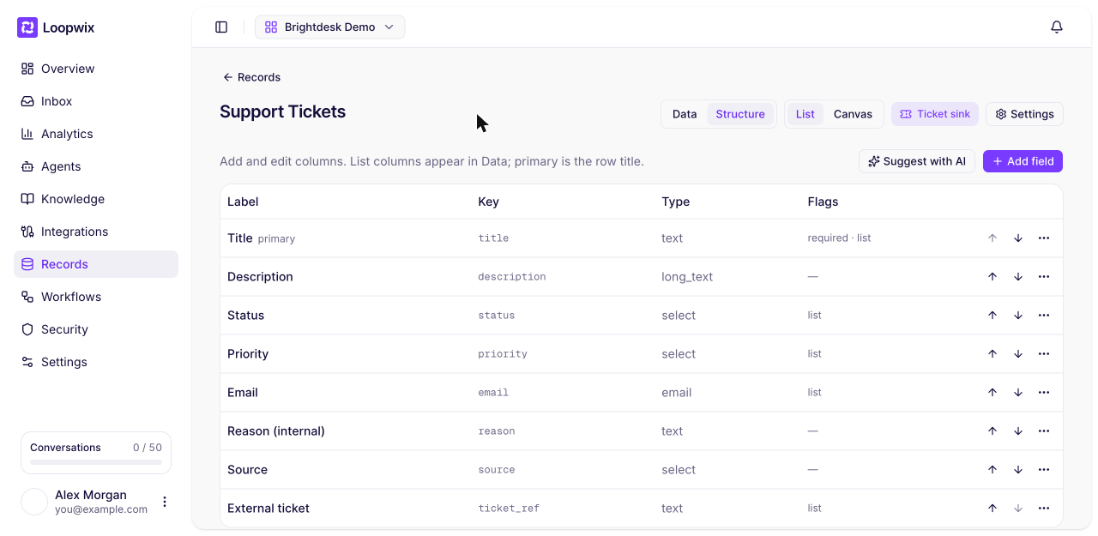
Open a table, choose Structure, and find Status pipeline. It "turns a status field into a work queue: the Data tab's Open filter, board columns, and when a row is finished." Switch on Enable status pipeline. The table needs a one-choice field first ("Add a Select field first, for example Status with options like Open and …").
How do I turn a table into a work queue?
Open the table, choose Structure and switch on Enable status pipeline. Pick the status field, mark each stage as open or done, and set the starting status. The table then gets an Open filter and board columns. You can also restrict which status changes are allowed.
Set it up
- Which field tracks progress? Choose a one-choice field, usually named Status. Its options become the stages staff move between. If the field has no options, edit it first.
- Is each stage still open, or done? For each stage choose Open or Done. Open stages appear under the Open filter and count as unfinished work. Done means the row is finished. Every stage must be marked so the filters stay accurate.
- What status should new rows start with? Used when a workflow, ticket or create form does not set one.
A summary, How this will behave, spells it out, for example: "Open filter: Open, Waiting on customer, Waiting on us. Done: Resolved. New rows: start as Open."
Where the pipeline shows up
- The Open, All and per-stage tabs on the Data tab.
- The columns of the Board view.
- The "is this finished?" decision for tickets, counts and automations.
Advanced: transitions and automations
Under Advanced: allowed transitions and automations (also in Table settings):
- Status transitions: "Which status a row may move to next." A From → To grid. A row with nothing ticked allows any transition out of it (the default).
- Automations: start a workflow when a record is created (On create) or enters a status (Enter each stage). The workflow receives the row's data. Off by default.
Turn these on when the table should behave like a queue.
Who may change status
In the starter packs, people with edit access and workflows may change status, and the AI may not. To let an agent change status, turn on AI Update for the table and for the agent; see Records for agents and workflows.
Example: refunds
| Stage | Open or done |
|---|---|
| Requested | Open |
| Approved | Open |
| Refunded | Done |
| Rejected | Done |
See the refund recipe.
Work with records
Add, edit, find, filter, sort, import and export rows in Records, switch between table, board and calendar views, and restore rows from the trash.
Table settings and access
Control what AI agents may do with a Records table, who may see its rows in chat, the trust level needed, status changes and automations.