
Fields and relations
All 15 field types, how to add and reorder fields, how to link tables with references, lookups and rollups, and how to use the structure view and canvas.
Open a table and choose the Structure tab. "Add and edit columns. List columns appear in Data; primary is the row title."
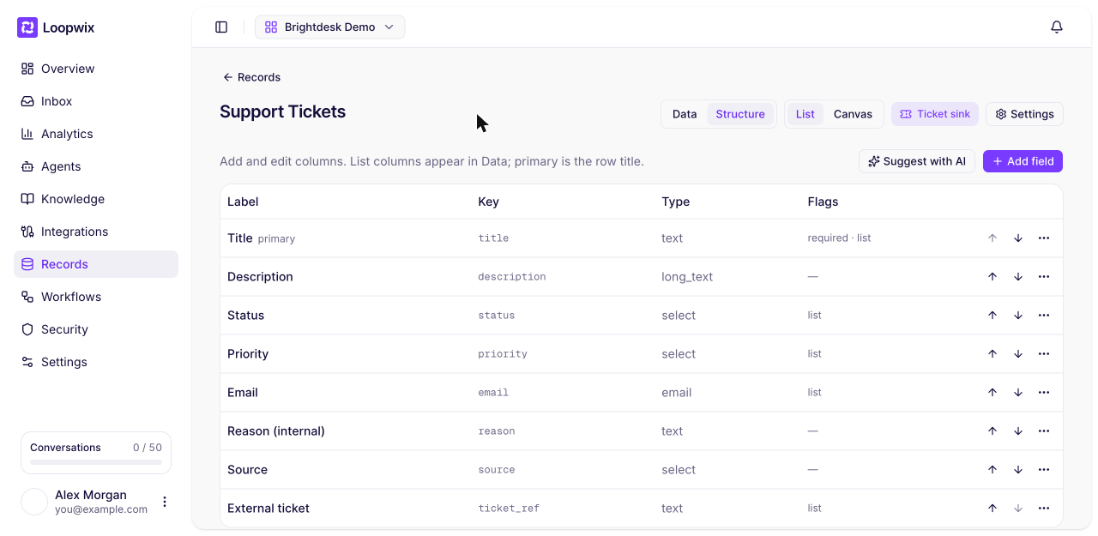
The field list
Each field has:
- A Label (what people see).
- A Key, the short machine name used by agents, workflows and imports. It must start with a lowercase letter and contain only lowercase letters, numbers and underscores (for example
ticket_ref). The namesid,created_at,updated_at,created_byandworkspace_idare reserved. - A Type.
- Settings: Required ("Must be filled when saving a row") and Show in list ("Visible as a Data grid column"). Primary display is "Used as the row title". Email and phone fields also have Identity field.
Use the arrows to reorder and the ... menu to edit or delete. Suggest with AI proposes fields; Add field adds one. "Changes apply to this table immediately."
Field types
| Type | Use it for |
|---|---|
Short text (text) | Names, titles, short notes |
Long text (long_text) | Descriptions, notes |
| Number | Counts and amounts |
| Email addresses | |
| Phone | Phone numbers |
| Date | A calendar date |
| Time | A time of day |
Date and time (datetime) | A moment |
One choice (select) | One of a list of options, with colours; drives status pipelines and boards |
Several choices (multi_select) | Any number of options |
Yes / no (boolean) | A switch |
| Reference | A link to a row in another table |
User reference (user_ref) | A link to a team member |
| Lookup | Show a field from a linked row (read-only) |
| Rollup | Summarise linked rows with Count, Sum or Average (read-only) |
Choice fields need at least one option. The option editor lets you add, rename, recolour and reorder options.
Identity field. Marking an email or phone field as the identity tells Loopwix which value identifies the person on the row. This is what lets a verified customer see only their own rows; see Table settings and access.
Relations
Link tables so related data stays together, for example a refund request that points to a contact.
- On the Model canvas, drag between fields to link tables (the connect-relation dialog).
- Or add a Reference field and choose the target table.
- A row's related panel shows the rows linked to it.
Lookup and Rollup are computed from a reference field. For a lookup, choose the related table, the reference field ("Via reference field") and the field to show ("Target field key"). For a rollup, choose the related table, the field on that table that points back, the aggregation, and the number field to total or average. "Computed fields are read-only and filled automatically when you open records."
The Canvas toggle in the Structure tab shows the table's neighbours as a graph; List returns to the field list.
Changing fields safely
Removing or changing a field can affect agents, workflows and imports that use its key. Loopwix runs an impact check before deleting; read what it says. Prefer adding a new field to deleting one. Changing a choice option that rows already use needs those rows moved to another option.
Create bases and tables
Create a Records base, add tables from a starter pack, a blank table or the AI designer, and delete tables safely when you no longer need them.
Work with records
Add, edit, find, filter, sort, import and export rows in Records, switch between table, board and calendar views, and restore rows from the trash.